
VbLessons
Teaching VB.NET, the right way.
Navigation ☰
Creating A New Project
Creating a new project will depend entirely on your developing environment. The type of project used throughout the lessons is a Console Application.
A Console Application uses a command-line and is sometimes referred to as a text-only interface.
Sandbox Environment
If you decide to use a Sandbox like dotnetfiddle, then follow these instructions:
- Create a new fiddle
- Optionally change the target language to VB.NET
- Optionally change the project type to console
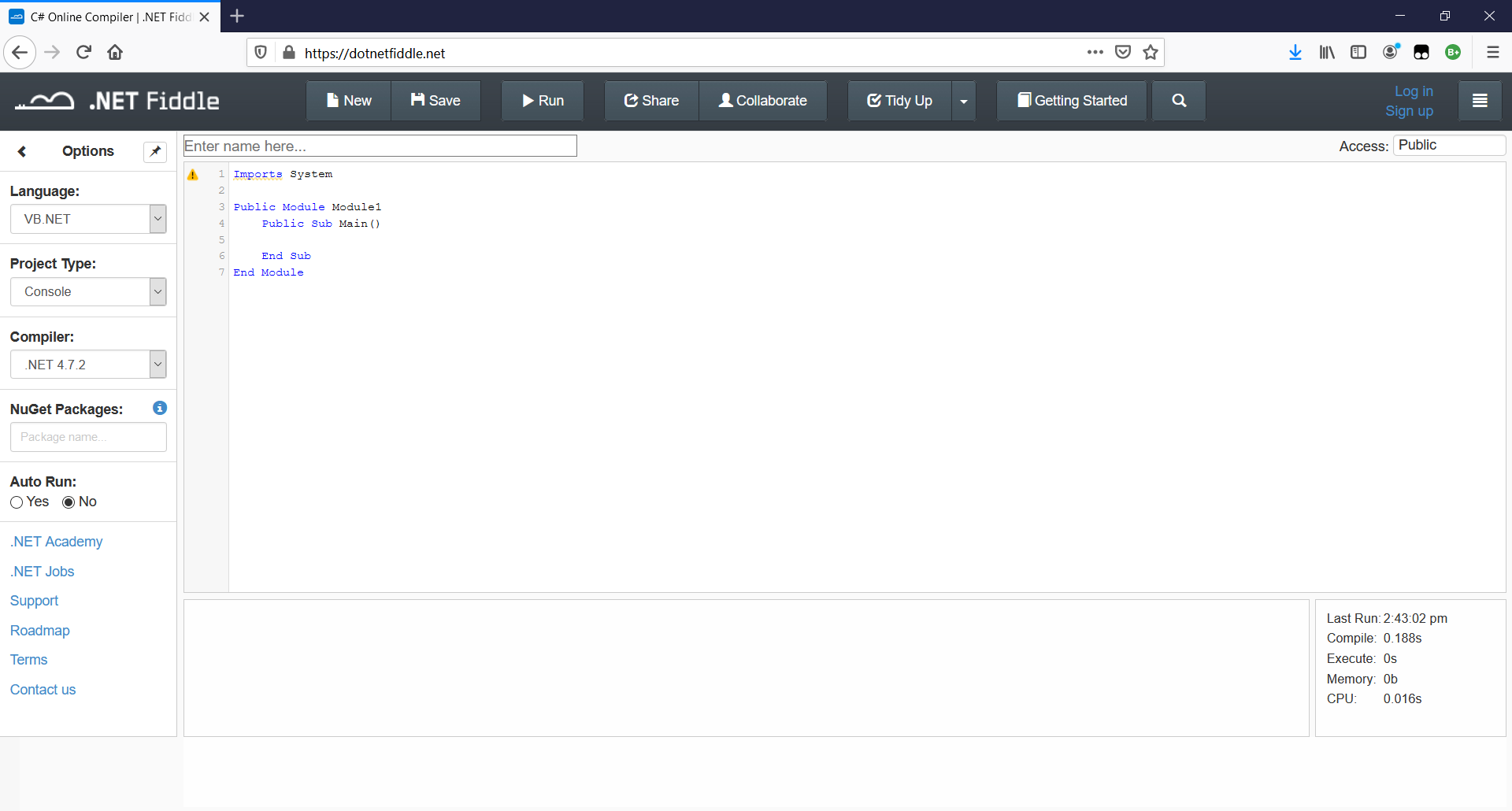
The screenshot above is of dotnetfiddle. Not every sandbox is the same, but they do have similarities. In dotnetfiddle, the code goes in the main text editor and any input/output from the console goes text editor at the bottom of the page.
Visual Studio
If you decided to use Visual Studio, then follow these instructions:
- Create a new project using either:
- The shortcut key Ctrl + Shift + n.
- Selecting File > New > Project from the menu.
- Optionally change the language to Visual Basic.
- Optionally change the platform to Windows.
- Optionally change the project type to Console.
- Select Console Application (.NET Framework).
- Click on the Next button.
- Optionally configure your project by changing the project's name, location, etc.
- Click on the Create button.
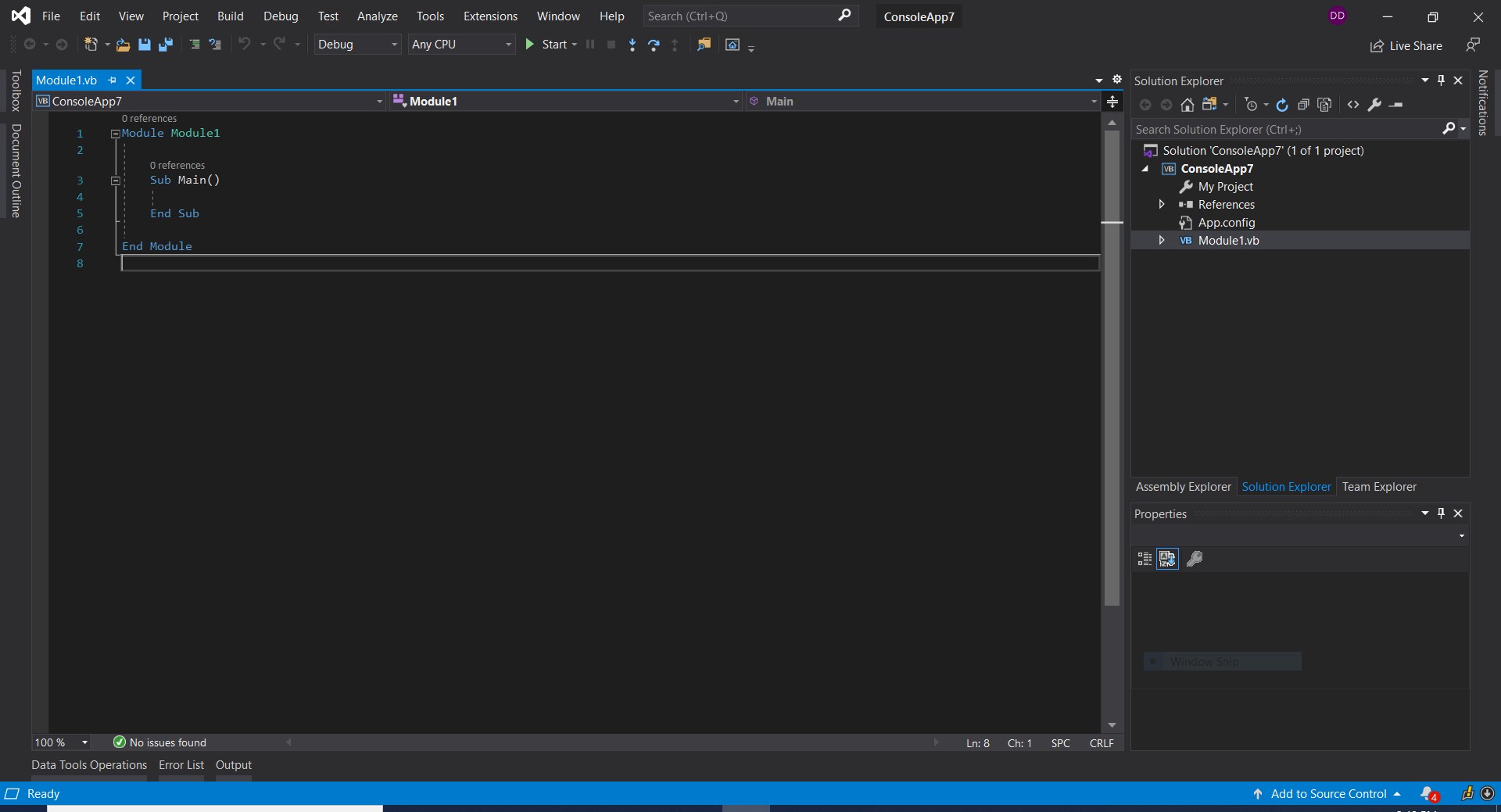
The screenshot above is of Visual Studio 2019 Community Edition. The code goes in the main text editor and when you click on Start (shortcut key: F5) it runs the command line.
New Project
Go ahead and create a new project. There should be some automatically generated code that looks something to the effect of the following:
Imports System
Public Module Module1
    Public Sub Main()

    End Sub
End Module
The first line imports the System namespace to be used throughout the code. Namespaces can be thought of as libraries that hold existing code.
The second line creates a new module named Module1. Modules can be thought of as a generic code container.
The third line creates a new method named Main. We will discuss methods later on, but for now understand that when the Console Application runs it knows to start running the code inside of the Main method.
This is the basic project structure that will be used throughout the lessons.
Option Strict
Description
Before we dive into programming, I would like to take a moment to discuss an optional configuration in VB.NET called Option Strict. You can find the documentation here: https://docs.microsoft.com/en-us/dotnet/visual-basic/language-reference/statements/option-strict-statement
Option Strict is a powerful feature in VB.NET that enforces stricter type checking by the compiler. When enabled, it requires explicit conversions between different data types. I highly encourage you to enable Option Strict as it will ensure that you write high-quality code and greatly reduce the likelihood of unexpected errors.
There are several ways to turn Option Strict on:
- Via code
- Via project properties (Visual Studio only)
- Via IDE options (Visual Studio only)
Personal Note
Look, I know that I'm throwing out some technical jargin at you and I'm sorry. It's just that, in my opinion, Microsoft made a very poor decision to have Option Strict turned off by default.
At the end of the day you really should turn Option Strict on. You will be a better developer, make less mistakes, and your code will run more efficiently.
Via Code
To turn Option Strict on via code, type the following line at the very top of your code file. This goes above any code at all, including any code that was automatically generated:
Option Strict OnThis works well for individual code files, but what happens if you have 50 million files? Do you really want to add that every single time?
Very rarely should Option Strict be turned off, typically what I will do is enable it either through properties or through the IDE options. Then in those rare cases where I need to turn it off, I will turn it off for individual code files using:
Option Strict OffVia Project Properties
You can only turn Option Strict on via the project properties in Visual Studio (sorry sandbox users). To turn Option Strict on via the project properties, follow these steps:
- Expand the Project menu
- Click on the project's properties menu item (last item)
- Click on the Compile tab
- Change the Option Strict dropdown to be On
- Save the project
The limitation to turning Option Strict on via the project properties is that Option Strict will only be turned on for that specific project. If you create a new project, Option Strict is turned off by default.
Via IDE Options
You can only turn Option Strict on via the IDE in Visual Studio (sorry again sandbox users). To turn Option Strict on via the IDE options, follow these steps:
- Expand the Tools menu
- Click on the Options menu item
- Expand the Projects and Solutions tree node
- Select the VB Defaults option
- Change the Option Strict dropdown to be On
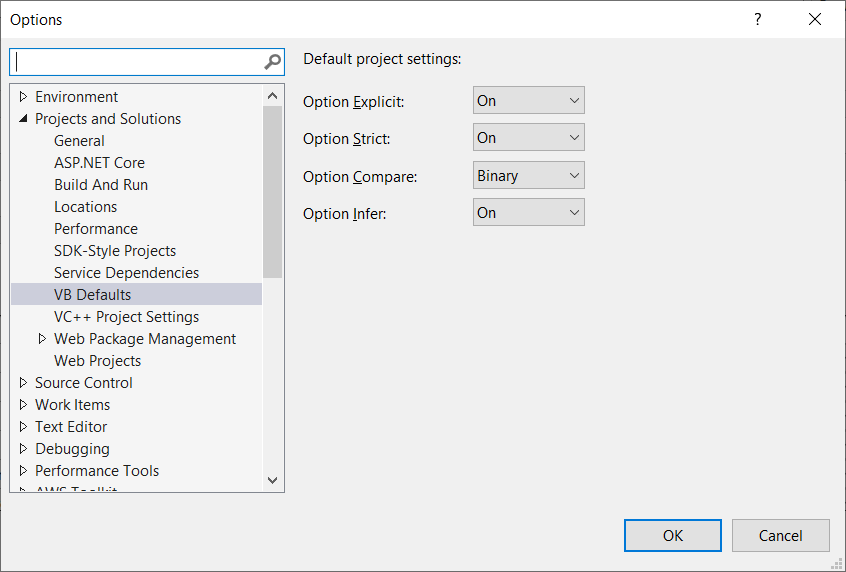
Turning on Option Strict via the the IDE Options is the best option because any and all projects will have Option Strict on by default without the need for any additional steps.
Variables
Description
A variable is one way that a programmer can store data in VB.NET. Variables work by allowing the programmer to assign a keyword to some value. An example of creating a variable is:
Dim website As String = "VbLessons"
Dim slogan As String = "Teaching Visual Basic .NET, the right way."
In this example, two String variables are created: website and slogan. The table below represents the syntax of declaring a variable:
| Keyword | Required? | Description |
|---|---|---|
| Dim | Yes | The keyword that starts the variable declaration. |
| name | Yes | The user defined and unique keyword that represents the variable's name. |
| As | Depends | This keyword is required when specifying the data-type. |
| data-type | No | The data-type of the variable. |
| = | No | The assignment operator when initializing a variable. |
Examples
Following the syntax rules from above, here are a few examples on defining variables:
Dim variable1 As String
Dim variable2 = "Hello World!"
Notice that the second variable doesn't have the As keyword. This is because we are assigning the variable a value right away and the compiler can infer what the type is.
However, if you do not immediately assign the variable, then the As keyword is required. For example, this would be invalid code that would throw a compilation error:
Dim badVariableData-Types
VB.NET is considered a strongly typed language. That is to say that when the application that ultimately executes the code, it knows beforehand what data-type a variable will be.
As I have already mentioned, if you do not explicitly set the data-type when declaring a variable, the compiler (which is the application that ultimately executes the code) will have to infer (i.e., guess) what the data-type is and it may or may not always guess the data-type you intended. Because of this, I would encourage that you always explicitly declare variables.
The following represent the various data-types:
| Name | Description |
|---|---|
| Boolean | True or False |
| Byte | Whole number from 0 - 255 |
| Char | Single character |
| DateTime | 0:00:00 on January 1, 0001 through 11:59:59 PM on December 31, 9999 |
| Decimal | Numeric value with a fractional component (more accurate) |
| Double | Numeric value with a fractional component (less accurate) |
| Integer | Number without a fractional component |
| Long | Number without a fractional component (can be larger than Integer) |
| SByte | Whole number from -128 - 127 |
| Short | Number without a fractional component (smaller than Integer) |
| Single | Numeric value with a fractional component (less accurate and smaller than a Double) |
| String | Collection of Chars |
| UInteger | Whole number |
| ULong | Whole number (can be larger than UInteger) |
| UShort | Whole number (smaller than UInteger) |
Important to note: I would highly recommend going over the MSDN documentation linked in the caption of the table above. Some things, such as how certain data-types are represented (like Strings being wrapped in double-quotes), will be documented there.
Example
The following is an example of defining some variables with using different data-types to show you how some of their values are represented:
Dim trueBooleanExample As Boolean = True

Dim falseBooleanExample As Boolean = False

Dim singleCharacterExample As Char = "a"c

Dim dateTimeLiteralExample As DateTime = #11/17/2025 10:30:00 PM#

Dim dateTimeConstructorExample As DateTime = New DateTime(2025, 11, 17, 22, 00, 00)

Dim decimalExample As Decimal = 10.5

Dim doubleExample As Decimal = 6.7

Dim integerExample As Integer = -1

Dim uintegerExample As UInteger = 25012344
Input And Output
Description
Often times your program will require user interaction. They may need to enter some piece of information or read something before moving on.
Output
To print or write something to the console, use the Console.Write or Console.WriteLine method. Documentation here: https://docs.microsoft.com/en-us/dotnet/api/system.console.write and https://docs.microsoft.com/en-us/dotnet/api/system.console.writeline
Console.Write will print a String to the console whereas Console.WriteLine will do the same thing, only moving the cursor in the console to the next line.
Place the following code in your Main method:
Console.WriteLine("Hello World!")If you are running the code in a sandbox, you should see the phrase "Hello World!" in the output area. But if you are running the code in Visual Studio, you may briefly see the phrase before the console closes.
The reason why the console closes so quickly in Visual Studio is because the code is finished executing in the Main method and there is no reason for the console to stay open. If you wanted to keep the console open, one way would be to prompt for the user enter something.
In newer versions of .NET, such as .NET 9, the console window actually stays open with a message stating the application finished executing. For now, if you are using Visual Studio, just add this after the line above:
Console.ReadLine()Argument
Both the Console.Write and the Console.WriteLine methods accept additional arguments that allow you to format the text being output to the console.
An argument is not like talking politics during Thanksgiving. It's refers to a value being passed into a method. Don't worry too much about this yet, we will be going over it more in a later lesson.
To format the text in the Console.Write and the Console.WriteLine methods, inside the string we wrap curly brackets around an index and then the index points to the argument. For example, the following code will print "Hello David Day" and then "Hello World!"
Dim firstName As String = "David"
Dim lastName As String = "Day"
Console.WriteLine("Hello {0} {1}", firstName, lastName)

firstName = "World!"
Console.WriteLine("Hello {0}", firstName)
The first line prints "Hello David Day" because {0} points to the first argument which is the variable firstName and {1} points to the second argument which is the variable lastName.
Keep in mind that the ordering matters, if we swapped the curly brackets inside the string then it will print differently. For example:
Dim firstName As String = "David"
Dim lastName As String = "Day"
Console.WriteLine("Hello {1}, {0}", firstName, lastName)
So even though our arguments didn't change, the order in which they appear in the string did. This example would print: Hello Day, David
Input
To read input from the console, use the Console.ReadLine method. Documentation here: https://docs.microsoft.com/en-us/dotnet/api/system.console.readline
The Console.ReadLine method will read the input and return a String with the value.
For example, here is how you could prompt for a value:
Dim dayOfTheWeek As String
Console.Write("What day of the week is it: ")
dayOfTheWeek = Console.ReadLine()

Console.WriteLine("You tell me that the day of the week is {0}", dayOfTheWeek)
Exercise
Try to do the following:
- Prompt the user for their name.
- Store the user input in a variable.
- Write back to the user "hello [name]!"
Solution
Show Exercise Code
Imports System
Public Module Module1
	Public Sub Main()
		Console.Write("Name: ")
		Dim name As String = Console.ReadLine()
		Console.WriteLine("Hello {0}!", name)
	End Sub
End Module
DotNetFiddle Live Demo
Arithmetic
Description
Do you want to be a programmer or not? If so, then surely you should have known that there would be some math involved.
Operators
The table below represent various arithmetic operators:
| Function | Operator |
|---|---|
| Add | + |
| Subtract | - |
| Multiply | * |
| Divide | / |
| Modulous | MOD |
| Exponent | ^ |
The result of an expression can have differing data-types.
For example, division will always be a fractional data-type like a decimal or short since division has the potential to return a fractional value. Whereas addition may return integral or fractional data-types depending on the result.
This is why, to reiterate from the Variables lesson, it is important to explicitly define what data-type you expect.
Example
Here is an example of using the various operators:
Dim addition As Integer = 1 + 2
Console.WriteLine("1 + 2 = {0}", addition)

Dim subtraction As Integer = 2 - 1
Console.WriteLine("2 - 1 - {0}", subtraction)

Dim multiplication As Integer = 2 * 3
Console.WriteLine("2 * 3 = {0}", multiplication)

Dim division As Double = 6 / 2
Console.WriteLine("6 / 2 = {0}", division)

Dim modulous As Integer = 4 MOD 2
Console.WriteLine("4 MOD 2 = {0}", modulous)

Dim exponent As Integer = 6 ^ 7
Console.WriteLine("6 ^ 7 = {0}", exponent)
The following would be printed in the console if the above code was executed:
1 + 2 = 3
2 - 1 - 1
2 * 3 = 6
6 / 2 = 3
4 MOD 2 = 0
6 ^ 7 = 279936
Order Of Operations
Math is extremely simple in VB.NET but it is important to remember that when you assign a variable to some mathematical expression you need to be mindful of operator precedence.
In school they may have taught you PEMDAS or BODMAS, parenthesis get performed before exponents, exponents get preformed before multiplication and division, multiplication and division get preformed before addition and subtraction. The same order of operations applies when coding.
Exercise
Try to do the following:
Solution
Show Pythagorean Theorem Exercise Code
Imports System
Public Module Module1
	Public Sub Main()
		Dim a = 5
		Dim b = 3
		Dim c = (5 ^ 2) + (3 ^ 2)
		Console.WriteLine("Pythagorean Theorem: {0} square + {1} squared = {2}", a, b, c)
	End Sub
End Module
DotNetFiddle Live Demo
Show Galileo's Speed Formula Exercise Code
Imports System
Public Module Module1
	Public Sub Main()
		Dim distance = 5
		Dim time = 73
		Dim speed = distance / time
		Console.WriteLine("Galileo's Speed Formula: {0} over {1} = {2}", distance, time, speed)
	End Sub
End Module
DotNetFiddle Live Demo
Comments
Description
Comments allow you to write text that the program will ignore.
Comments have many use cases. Some use cases are:
- Indicate who wrote a piece of code
- Explain what a block of code does in plain English
- Indicate where a section starts and stops
Comments can appear anywhere in the code, but it is important to note that you cannot prematurely end a comment. A comment starts with an apostrophe and ends at the end of a line.
Example
The following is an example of using comments:
' Author: David Day
Option Strict On ' turning option strict on
Imports System
Public Module Module1
	' TODO: setup a main method
End Sub
Comments may make the code look bigger, but comments do not add to the size of the final program. Comments are actually stripped out of the code whenever the code gets built. So you should not be worried about overall code size of the code with comments as they have no impact in the long run.
Task List Comments
This will only apply if you are using Visual Studio or an IDE that supports task lists. Comments can be used to build a task list. They work by starting the comment with a keyword like TODO, HACK, or even custom keywords. When comments start with a task list keyword, they will appear in the IDE's task list window; in Visual Studio the task list window is found under View > Task List.
Task list comments can be very useful when managing large projects. This example can give you a good idea how how task list comments are used in practical situations:
' TODO the code below is difficult to follow, this is probably a candidate for refactoring
' ... some convoluted code here
Be mindful when using task list comments. You can start to clutter up the task list to the point to where you or other developers start to ignore the listed items.
If/Then Statements
Description
The simplest form of a conditional statement in VB.NET is the If/Then statement. The If/Then statement has several variations but there are a few rules based on which variation you need.
If
The first and simplest variation of an If/Then statement is to have a single statement. The following is the syntax for a single statement If statement:
If (value1 = value2) Then
    ' value1 equals value2, do something!
End If
It is important to note that the parethesis around the conditional statement are not required. This is a stylistic format that I personally use to help readability.
The If only statement only evaluates a single expression and if the expression is true then it executes the code inside the If/Then block.
Take this for example:
Console.Write("Username: ")
Dim username As String = Console.ReadLine()
If (username = "admin") Then
	Console.WriteLine("Running with elevated privileges.")
End If
Console.WriteLine("Welcome, {0}", username)
This example prompts for a username, then only prints "Running with elevated privileges" if the entered username exactly matches "admin", and then will always print out the welcome statement at the end.
ElseIf
The second and more complex variation of an If/Then statement is to have ElseIf checks. ElseIfs will check the expressions in the order in which they appear, but they must appear after the initial If statement. The following is the syntax using ElseIfs:
If (value1 = value2) Then
    ' value1 equals value2, do something!
ElseIf (value1 = value3) Then
    ' value1 equals value3, but does not equal value1
ElseIf (value2 = value3) Then
    ' value2 equals value3
End If
You can have zero or more ElseIf statements, meaning it is completely optional or you can setup 50 million different checks.
The reason why order matters is because once an If or ElseIf block is executed, it will not execute any of the other blocks of code. For example:
Dim value1 As String = "A1"
If (value1 = "A") Then
    ' this is not true
ElseIf (value1 = "A1") Then
    ' this is true and the first condition to be true
	' any code in here will be executed
ElseIf (value1.StartsWith("A")) Then
    ' this is true, but the first ElseIf is also true
	' no code in here will be executed
End If
Else
The third variation of an If/Then statement is to have an Else check. The Else statement will always go at the very end and will only execute if all other checks in the If chain fail. The following is the syntax using an Else statement:
If (value1 = value2) Then
    'value1 equals value2, do something!
ElseIf (value1 = value3) Then
    'value1 equals value3, but not value 2
Else
    'value1 does not equal value2 or value3
End If
You can have zero or one Else statements, meaning its optional but you can't have more than one.
The Else statement will always be the last block of the If/Then chain too.
Remember, ElseIf statements are completely optional. You can have an If...Else without any ElseIf checks in there. For example:
Console.Write("Username: ")
Dim username As String = Console.ReadLine()
If (username = "admin") Then
	Console.WriteLine("Running with elevated privileges.")
Else
	Console.WriteLine("Running normally")
End If
Console.WriteLine("Welcome, {0}", username)
Exercise
Try to do the following:
- Prompt for the user's first name.
- Check if it matches your name.
- Check if it matches somebody elses name
- Check if matches neither name.
Solution
Show Exercise Code
Imports System
Public Module Module1
	Public Sub Main()
		Console.Write("First Name: ")
		Dim firstName As String = Console.ReadLine()

		If (firstName = "David") Then
			Console.WriteLine("We share the same name!")
		ElseIf (firstName = "Michael") Then
			Console.WriteLine("You share my brother's name!")
		Else
			Console.WriteLine("You have a pretty cool name.")
		End If
	End Sub
End Module
DotNetFiddle Live Demo
Select/Case
Description
An alternative to the If/Then statement is the Select/Case statement. The Select/Case statement provides you a more organized way of checking an expression.
The way it works is you have a single expression at the top. VB.NET will then evaluate each "case" in order to see if it equals the expression. Once the first case matches, then it exits the whole Select/Case statement.
This is an important distinction because if you have some JavaScript or C# experience, you may be used to breaking out of a Select/Case statement, that is not necessary in VB.NET.
Example
The following is the syntax for a Select/Case statement:
Select Case value1
    Case value2
        ' value1 equals value2, do something!
    Case value3
        ' value1 equals value3, but not value2
    Case Else
        ' value1 does not equal value2 or value3
End Case
It is important to note that the Case Else is not required, but at least one Case is required.
Multiple Values Check
Cases can be used to check multiple values at once using a CSV pattern:
Select Case dayOfWeek
    Case "Saturday", "Sunday"
        Console.WriteLine("Weekend")
    Case "Monday", "Tuesday", "Wednesday", "Thursday", "Friday"
        Console.WriteLine("Weekday")
End Select
Alternatively, you can use ranges as well:
Select Case score
    Case 90 To 100
        Console.WriteLine("A")
    Case 80 To 89
        Console.WriteLine("B")
    Case 70 To 79
        Console.WriteLine("C")
    Case 60 To 69
        Console.WriteLine("D")
    Case Else
        Console.WriteLine("F")
End Select
You can also do an open-eneded range:
Select Case score
    Case Is > 90
        Console.WriteLine("A")
    Case Is > 80
        Console.WriteLine("B")
    Case Is > 70
        Console.WriteLine("C")
    Case Is > 60
        Console.WriteLine("D")
    Case Else
        Console.WriteLine("F")
End Select
Exercise
Try to do the following:
- Imagine you are giving the user a test.
- You ask them 10 questions.
- At the end of the test, get their perecentage.
- Give the user their percentage and grade equivalent.
Solution
Show Exercise Code
Imports System
Public Module Module1
	Public Sub Main()
		Dim correctAnswers As Integer = 0
		Console.WriteLine("Basic Math Test")

		Console.Write("1 x 1: ")
		If (Console.ReadLine() = "1") Then
			correctAnswers = correctAnswers + 1
		End If

		Console.Write("1 x 2: ")
		If (Console.ReadLine() = "2") Then
			correctAnswers = correctAnswers + 1
		End If

		Console.Write("1 x 3: ")
		If (Console.ReadLine() = "3") Then
			correctAnswers = correctAnswers + 1
		End If

		Console.Write("1 x 4: ")
		If (Console.ReadLine() = "4") Then
			correctAnswers = correctAnswers + 1
		End If

		Console.Write("1 x 5: ")
		If (Console.ReadLine() = "5") Then
			correctAnswers = correctAnswers + 1
		End If

		Console.Write("1 x 6: ")
		If (Console.ReadLine() = "6") Then
			correctAnswers = correctAnswers + 1
		End If

		Console.Write("1 x 7: ")
		If (Console.ReadLine() = "7") Then
			correctAnswers = correctAnswers + 1
		End If

		Console.Write("1 x 8: ")
		If (Console.ReadLine() = "8") Then
			correctAnswers = correctAnswers + 1
		End If

		Console.Write("1 x 9: ")
		If (Console.ReadLine() = "9") Then
			correctAnswers = correctAnswers + 1
		End If

		Console.Write("1 x 10: ")
		If (Console.ReadLine() = "10") Then
			correctAnswers = correctAnswers + 1
		End If

		If (correctAnswers = 0) Then
			Console.WriteLine("Really? 0.")
		Else
			Dim score As Double = correctAnswers / 10
			Console.Write("{0}: ", score * 100)
			Select Case score
				Case Is >= 0.9
					Console.WriteLine("A")
				Case Is >= 0.8
					Console.WriteLine("B")
				Case Is >= 0.7
					Console.WriteLine("C")
				Case Is >= 0.6
					Console.WriteLine("D")
				Case Else
					Console.WriteLine("F")
			End Select
		End If
	End Sub
End Module
DotNetFiddle Live Demo
Ternary If
Description
The least verbose form of a conditional statement in VB.NET is the Ternary If statement. Unlike the If statement and the Select/Case statement, there is only one version of the Ternary If statement.
A Ternary If works by checking one expression and if it is true, then return one value, but if it is false then it will return a different value.
Example
The following is an example of a Ternary If:
Dim result As Boolean = If(value1 = value2, True, False)Abuse
Ternary If statements are extremely concise, but they have the potential to be abused. You can use a nested Ternary If by using a Ternary If inside of one of the return values.
I would highly discourage using nested Ternary Ifs, it would be much more legible to breakup a nested Ternary If into an If/Then or Select/Case statement.
Exercise
Try to do the following:
- Imagine you are giving the user a test.
- You ask them 10 questions.
- At the end of the test, show the user if they passed or failed.
Solution
Show Exercise Code
Imports System
Public Module Module1
	Public Sub Main()
		Dim correctAnswers As Integer = 0
		Console.WriteLine("Basic Math Test")

		Console.Write("1 x 1: ")
		If (Console.ReadLine() = "1") Then
			correctAnswers = correctAnswers + 1
		End If

		Console.Write("1 x 2: ")
		If (Console.ReadLine() = "2") Then
			correctAnswers = correctAnswers + 1
		End If

		Console.Write("1 x 3: ")
		If (Console.ReadLine() = "3") Then
			correctAnswers = correctAnswers + 1
		End If

		Console.Write("1 x 4: ")
		If (Console.ReadLine() = "4") Then
			correctAnswers = correctAnswers + 1
		End If

		Console.Write("1 x 5: ")
		If (Console.ReadLine() = "5") Then
			correctAnswers = correctAnswers + 1
		End If

		Console.Write("1 x 6: ")
		If (Console.ReadLine() = "6") Then
			correctAnswers = correctAnswers + 1
		End If

		Console.Write("1 x 7: ")
		If (Console.ReadLine() = "7") Then
			correctAnswers = correctAnswers + 1
		End If

		Console.Write("1 x 8: ")
		If (Console.ReadLine() = "8") Then
			correctAnswers = correctAnswers + 1
		End If

		Console.Write("1 x 9: ")
		If (Console.ReadLine() = "9") Then
			correctAnswers = correctAnswers + 1
		End If

		Console.Write("1 x 10: ")
		If (Console.ReadLine() = "10") Then
			correctAnswers = correctAnswers + 1
		End If

		Dim result As String = If(correctAnswers >= 6, "Pass", "Fail")
		Console.WriteLine("Result of test: {0}", result)
	End Sub
End Module
DotNetFiddle Live Demo
Operators
Description
I have already shown some of the operators in previous example and you probably guessed what they were fairly easily.
Now we will be going over the two types of operators in VB.NET.
Comparison Operators
Comparison operators are used to compare two values. The result will return a Boolean value (i.e., true or false) that represents the relationship between the two values being compared.
The table below represent various comparison operators:
| Function | Operator |
|---|---|
| Equal To | = |
| Not Equal To | <> |
| Less Than | < |
| Less Than or Equal To | <= |
| Greater Than | > |
| Greater Than or Equal To | >= |
Think of comparison operators in plain English: Is the value of the variable1 equal to the value of variable2? Is the value value of variable1 not equal to 5? Etc.
Equality Check
You may have noticed that the "is equal to" comparison operator is the same as the "assignment" operator when assigning variables; this is a holdover from legacy BASIC languages. It is unfortunate, but Microsoft decided to keep the operator the same in VB.NET instead of changing it.
Ironically, they did not do this C# (the C equivalent of VB.NET). In fact most languages outside of BASIC style langauges have a special operator for equality check, typically == or even === for stricter checks.
Something you should watch out for is assigning variables based on equality checks. For example:
Dim result = foo = barThis code is actually assigning the variable result to the equality check of foo and bar. In other words, if foo equals bar, then result will be set to true otherwise it will be set to false.
With that being say, there is an Equals method that you can use in lieu of the = operator, e.g.:
Dim value As String = Console.ReadLine()
If (value.Equals("foo")) Then
	' ...
End If
This is purely stylistic, you can use whichever way you prefer.
Example
Here is an example of doing comparison checks:
If (value1 = value2) Then
	' value1 equals value2
ElseIf (value2 <> value3) Then
	' value2 does not equal value3
ElseIf (value3 < value4) Then
	' value3 is less than value4
ElseIf (value4 > value5) Then
	' value4 is greater than value5
ElseIf (value5 <= value6) Then
	' value5 is less than or equal to value6
ElseIf (value6 >= value7) Then
	' value6 is greater than or equal to value7
End If
Logical Operators
Logical operators are used to compare two expressions and return a Boolean value.
The table below represent various logical operators:
| Function | Operator |
|---|---|
| Conjunction - If both expressions are True | AndAlso |
| Disjunction - If one of the two expressions are True | OrElse |
These logical operators are considered short-circute operators. In the case of AndAlso, if the first condition is false then it will not bother to evaluate the second condition. This is because no matter the result of the second condition, the comparison as a whole will fail. The same thing applies to OrElse.
Example
Here is an example of doing logical checks:
If (value1 = value2 AndAlso value2 = value3) Then
	' value1 equals value 2
	' AND value2 equals value3
ElseIf (value1 = value2 OrElse value2 = value3) Then
	' value1 equals value2
	' OR value2 equals value3
ElseIf (value1 = value2 AndAlso (value2 = value3 OrElse value3 > value4)) Then
	' value1 equals value2
	' AND either of these are true:
	'    value2 equals value3
	'    value3 greater than value4
End If
Arrays
Description
Arrays have existed for a very long time. They were actually apart of a version of BASIC known as Dartmouth BASIC all the way back in 1966!
Arrays are fixed sized collections and are efficient if you do not need to add or remove values. In other words, they should be used when you have a collection of values, you know exactly how many values there are, and the number of values will never change.
Example
The following is example of how to declare an array:
Dim myCollection() As IntegerTo initialize an array, set the array equal to all the values that will make up the array and enclose the values in curly brackets {}.
The following example is how to declare a collection of letters that make up the English alphabet:
Dim alphabet() As String = { "a" , "b" , "c" , "d" , "e" , "f" , "g" , "h" , "i" , "j" , "k" , "l" , "m" , "n" , "o" , "p" , "q" , "r" , "s" , "t" , "u" , "v" , "w" , "x" , "y" , "z" }Zero-Based Index
I showed you this without really explaining it back in the Input And Output lesson, but collections utilize a zero-based index. This means the first item in the collection is at index 0. Using the example above, index 0 would be the first item or the letter "a" and index 1 would be the second item or the letter "b".
This is an example of getting items from the array:
Dim alphabet() As String = { "a" , "b" , "c" , "d" , "e" , "f" , "g" , "h" , "i" , "j" , "k" , "l" , "m" , "n" , "o" , "p" , "q" , "r" , "s" , "t" , "u" , "v" , "w" , "x" , "y" , "z" }
Dim index As Integer = 0
Dim character As String = alphabet(index)
Console.WriteLine("Item {0}: {1}", index, character) ' Item 0 = a

index = 1
character = alphabet(index)
Console.WriteLine("Item {0}: {1}", index, character) ' Item 1 = b

index = 25
character = alphabet(index)
Console.WriteLine("Item {0}: {1}", index, character) ' Item 25 = z
Upper-Bounds
Sometimes you will know the number of items in an array beforehand, othertimes you won't. The maximum number of items an array can hold is called the upper-bounds.
You can explicitly set the upper-bounds of an array when declaring it, but if you do then you cannot initialize the collection like we do in the example above.
For example:
Dim alphabet(25) As String ' string array with an upper-bounds of 25 (i.e., 26 items)
alphabet(0) = "a"
alphabet(1) = "b"
' etc...
For most situations, you won't see much of a performance improvement by explicitly setting the upper-bounds of an array. But, this is a way to define an array and I wanted to show it to you.
Exception
If you try to get an item in the array by its index and the index you're trying to get doesn't exist (i.e. less than 0 or greater than upper-bounds), then an error will be thrown at runtime called an IndexOutOfRangeException: Documentation here: https://docs.microsoft.com/en-us/dotnet/api/system.indexoutofrangeexception
Runtime exceptions are harder to track down because they don't happen when we try to compile the code. Instead they happen when the code is actually running.
Luckily for us, it is very easy to prevent IndexOutOfRangeExceptions. All we have to do is check if the index we're using is greater than -1 and less than or equal to the upper-bounds.
For example:
Dim alphabet() As String = { "a" , "b" , "c" , "d" , "e" , "f" , "g" , "h" , "i" , "j" , "k" , "l" , "m" , "n" , "o" , "p" , "q" , "r" , "s" , "t" , "u" , "v" , "w" , "x" , "y" , "z" }
Dim index As Integer
' ... index is set somewhere down the line

If (index >= 0 OrElse index <= alphabet.Length - 1) Then
	Console.WriteLine(alphabet(index))
Else
	Console.WriteLine("You are using an invalid index.")
End If
Exercise
Try to do the following:
- Create an array to store all the letters in the English alphabet
- Use Console.Write to print your name, letter by letter
Solution
Show Exercise Code
Imports System
Public Module Module1
	Public Sub Main()
		Dim alphabet() As String = {"a" , "b" , "c" , "d" , "e" , "f" , "g" , "h" , "i" , "j" , "k" , "l" , "m" , "n" , "o" , "p" , "q" , "r" , "s" , "t" , "u" , "v" , "w" , "x" , "y" , "z"}
		Console.Write(alphabet(3)) 'd
		Console.Write(alphabet(0)) 'a
		Console.Write(alphabet(21)) 'v
		Console.Write(alphabet(8)) 'i
		Console.WriteLine(alphabet(3)) 'd
	End Sub
End Module
DotNetFiddle Live Demo
Lists
Description
Just like Arrays, Lists also represent a collection of values. The difference is that Lists do not have a fixed size, meaning you can easily add and remove items from the collection.
An example of when a List might be applicable would be like an inventory system. Let's say that you wanted to keep track of the bags of rice in a store, in this case we would add to the list everytime we received a shipment and then remove from the list anytime someone purchases a bag. An array doesn't make sense here because it would never have a fixed size.
Example
The following is the syntax for declaring a List:
Dim list1 As New List(Of String)Required Import
If you get an error with the above line that says:
Type 'List' is not defined.
Then this is because the System.Collections.Generic namespace has not been imported.
The default settings in Visual Studio will have the namespace imported by default, but if you are using a sandbox or have tinkered with the default settings, then you will need to manually import the namespace. This goes at the top of the code file:
Imports System
Imports System.Collections.Generic ' add me
Public Module Module1
    Public Sub Main()
        Dim list1 As New List(Of Integer)
    End Sub
End Module
Remember, if you have Option Strict turned on inside the code file, the Imports statement would go after the Option Strict statement but before anything else.
Generic Type
The List(Of T) class is considered a Generic, meaning that the data-type that the list represents is defined when you initialize the List.
For example:
Dim list1 As New List(Of String) ' list1 can only hold String values
Dim list2 As New List(Of Integer) ' list2 can only hold Integer values
Dim list3 As New List(Of DateTime) ' list3 can only hold DateTime values
Types of Variables
Up until now we have been mainly working with "primitive" variables. In other words, things like Strings, Integers, Booleans, etc.
Primitives are considered Value types, meaning they directly contain their data and we don't need to do anything special.
List(Of T) is a class, which makes it a Reference type. Reference types are different because we need to call the "new" keyword to instantiate the variable. This is why in the examples above you see New List(Of T).
Without applying the new keyword, the class's constructor will never get called and so we would just have a variable that holds no value. Incidentally, "no value" is called Nothing in VB.NET and Null in most other programming languages.
For example, this example would throw a NullReferenceException:
Dim list1 As List(Of String) ' forgot the "new" keyword
list1.Add("Item 1") ' NullReferenceException thrown here
That is because we have a variable that has no value, but we're trying to use a member of that variable.
Default State
List(Of T) variables can be initialized with a default collection by providing it with an initial array using the "From" keyword.
For example:
Dim list1 As New List(Of Integer) From { 10, 20, 30 }The above example will create a new List and hydrate it with the values 10, 20, 30.
Keep in mind that you do not need to do this all on one line. Depending on your IDE, you could separate the values by using just a new line or by using the line continuation character, which is an underscore. For example:
' this uses the line continuation character
Dim list1 As New List(Of Integer) From { _
	10, _
	20, _
	30 _
}

' this uses just a new line, which may or may not work in your developing environment
Dim list2 As New List(Of String) From {
	"Ten",
	"Twenty",
	"Thirty"
}
Getting An Item
Use the List(Of T).Item property to get a value at the specified index.
For example:
Dim list1 As New List(Of Integer) From { 10, 20, 30 }
Dim ten As Integer = list1.Item(0)
Lists are just like arrays in that they have a zero-based index and an IndexOutOfRangeException will be thrown if you attempt to get an index outside the bounds of the collection.
Adding To The Collection
Lists are designed to be modified and there are several ways to add items.
Add Method
The List(Of T).Add method will allow you to add a single item to the end of the collection.
For example:
Dim list1 As New List(Of Integer) From { 0 }
' list1 = { 0 }
list1.Add(10)
list1.Add(20)
list1.Add(30)
' list1 = { 0, 10, 20, 30 }
In the example above, we initialize our list with a default collection of 0. Afterwards, we add three more items to the collection, one at a time, and end up with 0, 10, 20, 30.
AddRange Method
The List(Of T).AddRange method will allow you to add a multiple items to the end of the collection.
This works by providing the method with a collection. For example:
Dim list1 As New List(Of Integer) From { 0 }
' list1 = { 0 }
list1.AddRange({ 10, 20, 30 })
' list1 = { 0, 10, 20, 30 }
In the example above, we initialize our list just like in the example before it. Afterwards we add three more items to the collection, all at once, and end up with the same results as the example before.
Keep in mind that the example I gave above is just using a shorthand for an array. We could define the array or even a list outside the AddRange method call. For example:
Dim list1 As New List(Of Integer)
' list1 = {}

Dim array1() As Integer = { 0 }
list1.AddRange(array1)
' list1 = { 0 }

Dim list2 As New List(Of Integer) From { 10, 20 }
list2.Add(30)
list1.AddRange(list2)
' list1 = { 0, 10, 20, 30 }
Insert Method
The List(Of T).Insert method will allow you to add an item to the collection, at the specified index.
For example:
Dim list1 As New List(Of String) From { "One", "Two", "Four", "Five" }
list1.Insert(2, "Three")
' list1 = { "One", "Two", "Three", "Four", "Five" }
Remember that List(Of T) indexing behaves just like Arrays. It is a zero-based index and you must stay withing the bounds of the collection.
InsertRange Method
The List(Of T).InsertRange method will allow you to add multiple items to the collection, at the specified index.
This works very similarly to the AddRange method, only you get to specify where the values should be added. For example:
Dim list1 As New List(Of Integer) From { 3, 4 }
' list1 = 3 and 4
list1.InsertRange(0, { 1, 2 })
' list1 = 1, 2, 3, 4
Removing From The Collection
Just like with adding items, there are several ways to remove items from a List(Of T).
Clear Method
The List(Of T).Clear method will remove every item from the collection.
For example:
Dim list1 As New List(Of Integer) From { 0, 1, 2, 3, 4, 5 }
' list1 = { 0, 1, 2, 3, 4, 5 }
list1.Clear()
' list1 = {}
In the example above, we initialize our list with a default collection of 0, 1, 2, 3, 4, 5. Afterwards, clear the collection and end up with an empty list.
Remove
The List(Of T).Remove method will remove the first occurence of a value from the collection.
For example:
Dim list1 As New List(Of Integer) From { 2, 1, 3, 1, 4, 1, 5, 1, 6 }
' list1 = { 2, 1, 3, 1, 4, 1, 5, 1, 6 }
list1.Remove(1)
' list1 = { 2, 3, 1, 4, 1, 5, 1, 6 }
list1.Remove(1)
' list1 = { 2, 3, 4, 1, 5, 1, 6 }
list1.Remove(1)
' list1 = { 2, 3, 4, 5, 1, 6 }
list1.Remove(1)
' list1 = { 2, 3, 4, 5, 6 }
In the example above, we initialize our list with a default collection of 2, 1, 3, 1, 4, 1, 5, 1, 6. We then call the Remove method and tell it to remove the value 1. However, since the value 1 appears multiple times in the collection, only the first instance of the value 1 is removed. It takes 4 calls of the Remove method to completely remove the value 1 from the collection.
Remove At
The List(Of T).RemoveAt method will remove a value from the collection by the specified index.
For example:
Dim list1 As New List(Of Integer) From { 1, 2, 3, 4, 5 }
' list1 = { 1, 2, 3, 4, 5 }
list1.RemoveAt(2)
' list1 = { 1, 2, 4, 5 }
In the example above, we initialize our list with a default collection of 1, 2, 3, 4, 5. We then call the RemoveAt method to remove the item at the second index, which with a zero based index would be the "third" slot, or the value 3.
Contains Method
Sometimes, we need to check if an item exists in a List(Of T) before we add or remove new items from the collection.
The List(Of T).Contains method will return a Boolean result based on if the value exists in the collection.
For example:
Dim list1 As New List(Of String) From { "One", "Two", "Four", "Five" }
Console.WriteLine("Enter a value of: One, Two, Three, or Four")

Dim userInput As String = Console.ReadLine()
If (list1.Contains(userInput)) Then
	Console.WriteLine("Thank you!")
Else
	Console.WriteLine("Invalid selection")
End If
Something to keep in mind is that the Contains method is case-sensitive with String values. In the example above, you would get Invalid selection if you entered "one" instead of "One".
Exercise
Try to do the following:
- Create a List that represents a parking garage full of vehicles.
- Initialize the List with several vehicles.
- Use the various add and remove methods to illustrate a parking garage's state throughout the day.
Solution
Show Exercise Code
Imports System
Imports System.Collections.Generic
Public Module Module1
	Public Sub Main()
		' initialize List with default values
		Dim garage As New List(Of String) From {
			"1978 Ford Mustang II",
			"1964 AMC Rambler",
			"1970 Chevrolet Corvette"
		}

		' prompt the user for a value to remove
		Console.WriteLine("What vehicle are you withdrawing: ")
		Dim userInput As String = Console.ReadLine()
		If (garage.Contains(userInput)) Then
			' remove the value if it exists
			Console.WriteLine("Removing {0}", userInput)
			garage.Remove(userInput)
		Else
			Console.WriteLine("I could not find that vehicle.")
		End If

		' prompt the user for a value to add
		Console.WriteLine("---")
		Console.WriteLine("What vehicle are you depositing: ")
		userInput = Console.ReadLine()
		If (garage.Contains(userInput)) Then
			Console.WriteLine("I cannot add that vehicle, because I already have that same year/make/model.")
		Else
			' add the value if it does not already exist
			Console.WriteLine("Adding {0}.", userInput)
			garage.Add(userInput)
		End If
	End Sub
End Module
DotNetFiddle Live Demo
Dictionaries
Description
Just like the List(Of T), a Dictionary(Of TKey, TValue) also represent a non-fixed size collection of values. The difference is that Dictionaries store key/value pairs instead of individual values.
With key/value pairs, the key must be unique to the Dictionary. It doesn't matter if the value repeats, but the key must never repeat.
An example of when a Dictionary might be applicable would like a menu of a restaurant. The key would be the food dish and the value would be the cost. The food dish is the key because you wouldn't have two of the exact dishes at different costs and the cost is the value because you have two different dishes cost the same. Since the Dictionary does not have a fixed size, the menu can add or remove the key/value pairs based on the season.
Example
The following is an exmaple of creating a new Dictionary(Of TKey, TValue):
Dim dictionary1 As New Dictionary(Of String, Double)The code above creates a new Dictionary and specifies that the key is a String and the value is a Double, much like the menu example described above.
Keep in mind that the Dictionary(Of TKey, TValue) also lives in the System.Collections.Generic namespace and so it must be imported if you want to use the Dictionary.
Default State
Dictionary(Of TKey, TValue) can be initialized with a default collection by providing it with an initial array using the "From" keyword.
For example:
Dim dictionary1 As New Dictionary(Of Integer, String) From { {1, "David"}, {2, "Day"}, {3, "David"}, {4, "Day"} }Or if you wanted to use multiple lines:
' line continuation
Dim dictionary1 As New Dictionary(Of Integer, String) From { _
	{ 1, "David" }, _
	{ 2, "Day" }, _
	{ 3, "David" }, _
	{ 4, "Day" } _
}

' this uses just a new line, which may or may not work in your developing environment
Dim dictionary2 As New Dictionary(Of String, Double) From {
	{ "Foo", 1 },
	{ "Bar", 10.55 },
	{ "Lorem", -51112.24 }
}
Getting An Item
Use the Dictionary(Of TKey, TValue).Item property to get a value by the specified key.
For example:
Dim dictionary1 As New Dictionary(Of Integer, String) From { { 1, "David" }, { 2, "Day" }, { 3, "David" }, { 4, "Day" } }
Dim value As String = dictionary1(1) ' value = "David"
Notice in this example, unlike in the List's example, we did not type out .Item when getting the value. We very well could have, but I wanted to demonstrate a common short-hand that you'll see. The example above is functionally equivalent to:
Dim value As String = dictionary1.Item(1) ' value = "David"Adding To The Collection
Dictionaries are allowed to be modified, but unlike the List class which has multiple methods to add values, the Dictionary class only provides us with the Dictionary(Of TKey, TValue).Add method.
This works similarly to the List's Add method in that it will add a single key/value pair to the end of the collection. For example:
Dim dictionary1 As New Dictionary(Of Integer, String) From { { 1, "One" } }
' dictionary1 = { { 1, "One" } }
dictionary1.Add(2, "Two")
dictionary1.Add(3, "Three")
dictionary1.Add(4, "Four")
' dictionary1 = {
	{ 1, "One" },
	{ 2, "Two" },
	{ 3, "Three" },
	{ 4, "Four" }
}
In the example above, we initialize our list with a default collection of { 1, "One" }. Afterwards, we add three more items to the collection, one at a time, and up with: { 1, "One" }, { 2, "Two" }, { 3, "Three" }, { 4, "Four" }.
Exception
If you try to add a key/value pair to the Dictionary and the Dictionary already has a pair with that key, then an error will be thrown at runtime called an ArgumentException: Documentation here: https://learn.microsoft.com/en-us/dotnet/api/system.argumentexception.
Lucky for us, it is very easy to prevent ArgumentExceptions, all we have to do is check if the key already exists in the Dictionary using the Dictionary(Of TKey, TValue).ContainsKey method.
For example:
Dim dictionary1 As New Dictionary(Of String, String) From { { "A", "One" } }

Console.Write("Key: ")
Dim key As String = Console.ReadLine()

Console.Write("Value: ")
Dim value As String = Console.ReadLine()

If (dictionary1.ContainsKey(key)) Then
	Console.WriteLine("Cannot add the key/value pair because the key already exists.")
Else
	Console.WriteLine("Adding {0}/{1}", key, value)
	dictionary1.Add(key, value)
End If
Removing From The Collection
There are a couple of ways to remove key/value pairs from a Dictionary.
Clear
The Dictionary(Of TKey, TValue).Clear method will remove every item from the collection.
For example:
Dim dictionary1 As New Dictionary(Of Integer, String) From { { 1, "David" }, { 2, "Day" } }
' dictionary1 = {
	{ 1, "David" },
	{ 2, "Day" }
}

dictionary1.Clear()
' dictionary1 = {}
In the example above, we initialize our list with a default collection of { 1, "David" }, { 2, "Day" }. Afterwards, we clear the collection and end up with an empty Dictionary.
Remove
The Dictionary(Of TKey, TValue).Remove method will remove the key/value pair from the collection based on the given key.
For example:
Dim dictionary1 As New Dictionary(Of Integer, String) From { { 1, "David" }, { 2, "Day" } }
' dictionary1 = {
	{ 1, "David" },
	{ 2, "Day" }
}

dictionary1.Remove(1)
' dictionary1 = { { 2, "Day" } }
In the example above, we initialize our list with a default collection of { 1, "David" }, { 2, "Day" }. Afterwards, we remove the key/value pair where the key equal 1 and end up with { 2, "Day" }.
Keep in mind that an ArgumentException will be thrown if you attempt to remove a key/value pair where the key does not exist. It is important to check that the dictionary contains the key first before removing it.
Exercise
Try to do the following:
- Create a Dictionary that represents a restaurant menu.
- Initialize the List with several menu items.
- Prompt the user for what item they want to buy.
- Give the user readable error if they ask for an item that is not in the dictionary.
- Give the user the price if they ask for an item that is in the dictionary.
Solution
Show Exercise Code
Imports System
Imports System.Collections.Generic
Public Module Module1
	Public Sub Main()
		Dim menu As New Dictionary(Of String, Double) From {
			{ "Cold Drink", 1.5 },
			{ "Hamburger", 5.0 },
			{ "Hot Dog", 3.5 },
			{ "Nachos", 3.5 }
		}
		Console.Write("What do you want: ")
		Dim request As String = Console.ReadLine()
		If (menu.ContainsKey(request)) Then
			Console.WriteLine("{0} costs ${1}", request, menu.Item(request))
		Else
			Console.WriteLine("{0} is not on the menu.", request)
		End If
	End Sub
End Module
DotNetFiddle Live Demo
For/Next Loop
Description
A loop is essentially a way to repeat a block of code. This allows us to simplify our code and make it easier to read.
A For/Next loop is used to loop specific number times.
For example:
For loopVariableCounter As Integer = 1 To 10 Step 1
	Console.WriteLine("Loop number {0}", loopVariableCounter)
Next
The code above will loop 10 times and print the variable, which represent what loop counter it is on. I.e. it will print:
Loop number 1
Loop number 2
Loop number 3
Loop number 4
Loop number 5
Loop number 6
Loop number 7
Loop number 8
Loop number 9
Loop number 10
Step
In the example above we specify a step at the end of the first line. The step tells the compiler what value to increment counter at. The default step of a For/Next loop is 1, which means the example above could be simplified to:
For loopVariableCounter As Integer = 1 To 10
	Console.WriteLine("Loop number {0}", loopVariableCounter)
Next
However, what if we wanted the step to a fraction? Then we would change the counter variable to a Double and set the step to the fractional amount:
For counter As Double = 1 To 10 Step 0.5
	Console.WriteLine("counter = {0}", loopVariableCounter)
Next
The code above will print out 20 values from 1 to 10 in increments of 0.5, e.g. 1, 1.5, 2, 2.5, etc.
What if we wanted to loop backwards? Then we'd make the "to" value less than the initial value of the counter and set the step to a negative value.
For example, this is how we'd loop backwards from 10 in 0.5 increments:
For counter As Double = 10 To 1 Step -0.5
	Console.WriteLine("counter = {0}", loopVariableCounter)
Next
Exercise
Try to do the following:
- Create an Array that holds the alphabet.
- Create a List that holds characters.
- Loop over the array, backwards, and add the current character to the List.
Solution
Show Exercise Code
Imports System
Imports System.Collections.Generic
Public Module Module1
	Public Sub Main()
		Dim alphabet() As String = { "a" , "b" , "c" , "d" , "e" , "f" , "g" , "h" , "i" , "j" , "k" , "l" , "m" , "n" , "o" , "p" , "q" , "r" , "s" , "t" , "u" , "v" , "w" , "x" , "y" , "z" }
		Dim reversedAlphabet As New List(Of String)

		For counter As Integer = alphabet.Length - 1 To 0 Step -1
			Dim letter As String = alphabet(counter)
			reversedAlphabet.Add(letter)
		Next
	End Sub
End Module
DotNetFiddle Live Demo
For/Each Loop
Description
The For/Each loop allows us to loop over every item in a collection.
For example:
Dim people() As String = { "David", "Brent", "John" }
For Each person As String In people
	Console.WriteLine(person)
Next
The For/Each loop is convenient because you do not need to know how many items are in the collection.
Unlike the For/Next loop, in the For/Each loop you do not have know how many times you have to loop for.
Exercise
Try to do the following:
- Create an Array that holds the several numbers.
- Create a variable that will store the sum of all the numbers.
- Loop over the array and add each number to the variable.
- After the loop finishes, display the final sum value.
Solution
Show Exercise Code
Imports System
Public Module Module1
	Public Sub Main()
		Dim values() As Integer = { 1, -1, 55, 90, -75 }
		Dim sum As Integer

		For Each value As Integer In values
			sum = sum + value
		Next

		Console.WriteLine("Sum: {0}", sum)
	End Sub
End Module
DotNetFiddle Live Demo
Do Loop
Description
There are several variations of a Do loop, but the basic idea is that it will continue to loop based on a Boolean value.
Do/Until Loop
The first variation is the Do/Until loop. This will continue to loop until a Boolean is true and the check against the Boolean value can happen at the beginning or the end of the loop.
For example:
' example of checking at top of loop
Dim counter As Integer = 0
Do Until counter = 10
	counter = counter + 1
	Console.WriteLine("Counter incremented by 1")
Loop

' example of checking at bottom of loop
Dim keyword As String
Do
	Console.Write("Type 'exit' to escape: ")
	keyword = Console.ReadLine()
Loop Until keyword = "exit"
Do/While Loop
The second variation of a Do loop is the Do/While loop. This will continue to loop while a Boolean is true. Just like with the Do/Until variation, the check can happen at the beginning or the end of the loop.
For example:
' example of checking at top of loop
Dim counter As Integer = 0
Do While counter < 10
	counter = counter + 1
	Console.WriteLine("Counter incremented by 1")
Loop

' example of checking at bottom of loop
Dim keyword As String
Do
	Console.Write("Type 'exit' to escape: ")
	keyword = Console.ReadLine()
Loop While keyword <> "exit"
Infinite Loop
Be very careful when using Do loops because they have the potential to be an infinite loop.
Infinite loops can cause serious issues like StackOverflowExceptions as well as battery overheating issues on laptops.
While infinite loops have their purpose, they should be used with caution.
The following is an example of setting up an infinite loop:
Do While True
    ' do something
Loop

' or
Do Until True = False
	' do something
Loop
If you are running Visual Studio, open you task manager while running the application and watch the CPU jump to 100%.
Exercise
Try to do the following:
- Setup a Do loop, either variation, that stops when the user guesses your name.
Solution
Show Exercise Code
Imports System
Public Module Module1
	Public Sub Main()
		Console.WriteLine("Try to guess my name!")

		Dim myName As String = "David"
		Dim userInput As String

		Do
			Console.Write("Guess: ")
			userInput = Console.ReadLine()
		Loop Until userInput = myName
	End Sub
End Module
DotNetFiddle Live Demo
Functions
Description
Functions represent a block of code that will return a value.
Strictly speaking, you don't actually need to return a value from a function in VB.NET like you do in other programming languages. However, it is best practice to always return a value.
The following is an example for setting up a function:
Function MyFunction() As Integer
	Dim someValue As Integer = 1
	Return someValue
End Function
The code above defines a function named MyFunction and returns the value 1.
Return
The value to be returned will always come after the Return keyword.
The Return keyword can appear anywhere in the function, it can even appear multiple times in a function. However, once a Return gets executed, the function will not execute any code after it.
Here is an example of defining a function with multiple returns:
Function TimeOfDay() As String
	Dim currentTime As DateTime = DateTime.Now

	If (currentTime.Hour <= 11) Then
		Return "Morning";
	ElseIf (currentTime.Hour = 12) Then
		Return "Noon"
	ElseIf (currentTime.Hour <= 5) Then
		Return "Afternoon"
	ElseIf (currentTime.Hour <= 8) Then
		Return "Evening"
	End If

	Return "Night"
End Function
It is worth mentioning that some coding conventions would prefer that you never use multiple return statements, i.e., the return will only ever happen once.
In that case, we can refactor the function above to be:
Function TimeOfDay() As String
	Dim currentTime As DateTime = DateTime.Now
	Dim returnValue As String = "Night"

	If (currentTime.Hour <= 11) Then
		returnValue = "Morning";
	ElseIf (currentTime.Hour = 12) Then
		returnValue = "Noon"
	ElseIf (currentTime.Hour <= 5) Then
		returnValue = "Afternoon"
	ElseIf (currentTime.Hour <= 8) Then
		returnValue = "Evening"
	End If

	Return returnValue
End Function
Both are functionally equivalent, they just use different coding conventions.
Sub Routines
Description
Sub Routines, often referred to as Subs, are simliar to functions in that they represent a block of code. The difference between the two is that subs do not return a value, instead subs will just execute the code.
You should have already seen sub routines. Don't remember it? Look inside the Module and you'll see that we have been using Sub Main all throughout these lessons.
The Main sub routine has a special purpose for the module of a Console Application that we will cover later.
Here is an example of defining a sub:
Sub MySub()
	Console.WriteLine("Hello World!")
End Sub
The code above defines a sub routine named MySub and prints out the text "Hello World!" to the console.
Parameters
Description
Now that we've talked about Functions and Sub Routines, it's time to talk about how we actually give them information: parameters.
A parameter is a variable that lives in the parentheses of a Function or Sub. When you call the Function or Sub, you pass values into those parameters. Those values are called arguments.
In other words:
- Parameters are in the method's definition.
- Arguments are the actual values you pass in when you call it.
Example:
' name is the parameter
Sub Greet(name As String)
	Console.WriteLine("Hello {0}!", name)
End Sub

Greet("David") ' "David" is the argument
Think of parameters as placeholders and arguments as the real data that fills those placeholders.
Defining Parameters
Parameters are defined inside the parentheses of your Function or Sub, just like variable declarations.
The syntax looks like this:
Sub MySub(parameterName As DataType)
	' ...
End Sub

Function MyFunction(parameterName As DataType) As ReturnType
	' ...
End Function
Here is an example that takes a number and prints whether it is positive or negative:
Sub PrintSign(number As Integer)
	If (number > 0) Then
		Console.WriteLine("{0} is positive", number)
	ElseIf (number < 0) Then
		Console.WriteLine("{0} is negative", number)
	Else
		Console.WriteLine("{0} is zero", number)
	End If
End Sub

Public Sub Main()
	PrintSign(5)
	PrintSign(-10)
	PrintSign(0)
End Sub
In this example, number is the parameter. Each time we call PrintSign, we pass a different argument into that parameter.
Multiple Parameters
You can have zero, one, or many parameters. If you have more than one, separate them with commas.
Sub PrintFullName(firstName As String, lastName As String)
	Console.WriteLine("Full Name: {0} {1}", firstName, lastName)
End Sub

Function Add(leftValue As Integer, rightValue As Integer) As Integer
	Return leftValue + rightValue
End Function

Public Sub Main()
	PrintFullName("David", "Day")

	Dim result As Integer = Add(10, 20)
	Console.WriteLine("10 + 20 = {0}", result)
End Sub
Just like with variables, each parameter must have a unique name within the same Function or Sub.
ByVal and ByRef
In VB.NET, parameters can be passed in two ways:
- ByVal (by value) - a copy of the value is passed in.
- ByRef (by reference) - a reference to the original variable is passed in.
If you don't specify anything, then ByVal is the default.
ByVal
When you pass a parameter ByVal, the Function or Sub cannot change the original variable outside of the method.
Sub IncrementByVal(value As Integer)
	value = value + 1
	Console.WriteLine("Inside IncrementByVal: {0}", value)
End Sub

Public Sub Main()
	Dim number As Integer = 10

	IncrementByVal(number)
	Console.WriteLine("After IncrementByVal: {0}", number)
End Sub
This will print something like:
Inside IncrementByVal: 11
After IncrementByVal: 10
The method changed its own copy of value, but the original number stayed the same.
ByRef
When you pass a parameter ByRef, the Function or Sub can change the original variable.
Sub IncrementByRef(ByRef value As Integer)
	value = value + 1
	Console.WriteLine("Inside IncrementByRef: {0}", value)
End Sub

Public Sub Main()
	Dim number As Integer = 10

	IncrementByRef(number)
	Console.WriteLine("After IncrementByRef: {0}", number)
End Sub
This will print:
Inside IncrementByRef: 11
After IncrementByRef: 11
Use ByRef when the method should be allowed to modify the caller's variable. Otherwise, prefer ByVal.
Optional Parameters
Sometimes you want a parameter that the caller doesn't have to provide. In that case you can make the parameter optional by giving it a default value.
The rules are:
- Use the
Optionalkeyword. - You must provide a default value with
=. - Optional parameters must come after all required parameters.
Sub Greet(name As String, Optional greeting As String = "Hello")
	Console.WriteLine("{0}, {1}!", greeting, name)
End Sub

Public Sub Main()
	Greet("David") ' Hello, David!
	Greet("David", "Bon matin") ' Bon matin, David!
End Sub
Optional parameters are great for "common case" values that you don't want to force the caller to type every time.
ParamArray (Variable Number of Arguments)
Sometimes you don't know how many values will be passed in. Instead of creating 50 million overloads, you can use ParamArray.
ParamArray lets you pass a variable number of arguments into a single method. Under the hood, it's treated as an array.
The rules:
- Use the ParamArray keyword.
- It must be the last parameter.
- Its type must be an array.
Sub PrintAll(ParamArray values() As Integer)
	For Each value As Integer In values
		Console.WriteLine(value)
	Next
End Sub

Public Sub Main()
	PrintAll(1)
	PrintAll(10, 20, 30)
	PrintAll(100, 200, 300, 400, 500, 600)
End Sub
In the example above, values behaves just like any other Integer array inside the method.
Named Arguments
VB.NET also lets you specify arguments by name instead of by order. This can improve readability, especially when you have a lot of parameters with similar data-types.
Sub LogMessage(message As String, severity As Integer, Optional category As String = "General")
	Console.WriteLine("[{0}] ({1}) {2}", category, severity, message)
End Sub

Public Sub Main()
	' positional arguments
	LogMessage("Something happened.", 1, "System")

	' named arguments
	LogMessage(severity := 2, message := "Something else happened.", category := "Security")

	' mix of both
	LogMessage("Default category example", severity := 3)
End Sub
While you won't always need named arguments, they can make complex calls more self-documenting.
Exercise
Try to do the following:
- Create a Function named
AddThreeNumbersthat takes three Integer parameters and returns their sum. - Create a Sub named
PrintGreetingthat takes two String parameters: a name and a greeting message. Have it print the message and name to the console. - Modify
PrintGreetingso that the greeting message is an optional parameter with a default value of "Hello". - In
Main, call both methods several times with different arguments (try using named arguments at least once).
Solution
Show Exercise Code
Imports System
Public Module Module1

	Public Sub Main()
		' test AddThreeNumbers
		Dim sum1 As Integer = AddThreeNumbers(1, 2, 3)
		Console.WriteLine("1 + 2 + 3 = {0}", sum1)

		Dim sum2 As Integer = AddThreeNumbers(10, -5, 20)
		Console.WriteLine("10 + (-5) + 20 = {0}", sum2)

		Console.WriteLine("---")

		' test PrintGreeting (positional)
		PrintGreeting("David")
		PrintGreeting("Alice", "Good morning")

		Console.WriteLine("---")

		' test PrintGreeting (named arguments)
		PrintGreeting(name := "Bob", greeting := "Welcome")
	End Sub

	Function AddThreeNumbers(first As Integer, second As Integer, third As Integer) As Integer
		Return first + second + third
	End Function

	Sub PrintGreeting(name As String, Optional greeting As String = "Hello")
		Console.WriteLine("{0} {1}!", greeting, name)
	End Sub

End Module
DotNetFiddle Live Demo
Scoping
Description
Up until now, the variables and methods you've created have all lived happily inside the same place. But as your programs grow, you need a way to control where something can be seen and who is allowed to use it.
This concept is called scoping or accessibility.
I find that it is best to illustrate the concept of scoping by providing a visual reference:
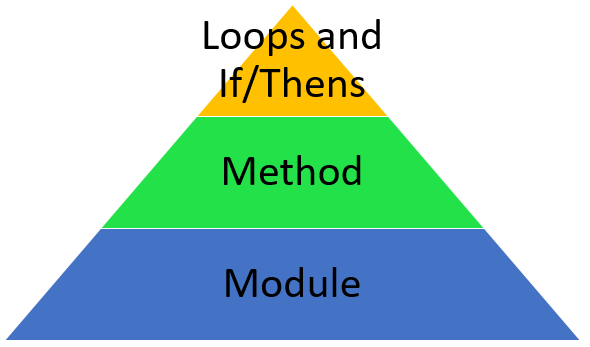
For example, if a variable is declared in the bottom-most slice of the pyramid (the largest slice) then it is accessible in all of the smaller slices, but if a variable is declared in the topmost slice of the pyramid (the smallest slice) then none of the other slices have access to the variable.
This is an example of Scoping inside the definitions:
Imports System
Public Module Module1
    Dim moduleLevel As Integer = 0 ' moduleLevel is accessible anywhere in Module1

    Public Sub Main()
        Dim methodLevel As Int32 = moduleLevel + 1 'methodLevel is accessible only within Module1.Main

        If moduleLevel >= 0 Then
            Dim topmostLevel As Int32 = methodLevel + 1 ' topmostLevel is only accessible within this If statement

			Console.WriteLine(moduleLevel)
			Console.WriteLine(methodLevel)
			Console.WriteLine(topmostLevel)
        End If
    End Sub
End Module
Access Modifiers
Access modifiers allow us to change the scope of a definition (like a Module, method, or variable).
In VB.NET, the two most common modifiers are:
- Public
- Private
There are more advanced ones, like Protected and Friend, but for now, we'll keep it simple.
Private Modifier
The Private access modifier will flag the definition as only being accessible inside the class, module, or structure where it was defined.
In other words, if you mark something as Private, you're saying: This belongs to me and nobody else can touch it.
Example:
Module Module1

	Private secretValue As Integer = 42

	Sub ShowSecret()
		Console.WriteLine(secretValue) ' allowed
	End Sub

End Module

Module Module2

	Sub ShowSecret()
		Console.WriteLine(Module1.secretValue) ' not allowed because it is private
	End Sub

End Module
Trying to access secretValue from Module2 will result in a compilation error because it's out of scope.
Public Modifier
Public is the opposite of Private. It will flag the definition as being accessible anywhere throughout the project.
If you want something to be available everywhere, you mark it as Public.
Example:
Module Module1

	Public secretValue As Integer = 42

	Sub ShowSecret()
		Console.WriteLine(secretValue) ' allowed
	End Sub

End Module

Module Module2

	Sub ShowSecret()
		Console.WriteLine(Module1.secretValue) ' allowed because it is public
	End Sub

End Module
Why Does Scope Matter?
- You don't want other parts of your program accidentally modifying internal values.
- You want to hide complexity and expose only what the user needs.
- You want to avoid naming conflicts and unpredictable bugs.
Private values help protect your logic while public values help organize what your program exposes.
Additional Information
Please visit the official documentation on access levels for more information on scoping.
The documentation will be able to provide you with every access modifier.
Converting Data
ToString Method
Every single object and data-type contains a ToString method. This method will print out the String representation of the object's value.
Sometimes the result of the ToString method is exactly what you would expect; othertimes, it is not.
The following is an example of using the ToString method:
Dim integerValue As Integer = 1
Console.Write("Integer Conversion: ")
Console.WriteLine(integerValue.ToString()) ' 1

Dim fractionalValue As Double = 1.5
Console.Write("Fractional Conversion: ")
Console.WriteLine(fractionalValue.ToString()) ' 1.5

Dim booleanValue As Boolean = True
Console.Write("Boolean Conversion: ")
Console.WriteLine(booleanValue.ToString()) ' True

Dim dateValue As DateTime = DateTime.Now
Console.Write("Date Conversion: ")
Console.WriteLine(dateValue.ToString()) ' current date/time in the default culture format of the operating system
Formatting
The ToString method accepts a couple of parameters that allow you to format the returned String. Documentation here: https://docs.microsoft.com/en-us/dotnet/standard/base-types/formatting-types
Depending on the data-type, the format parameter may behave differently. The list below contains important documentation that you should reference when formatting Strings:
- Custom Date and Time Formats: https://docs.microsoft.com/en-us/dotnet/standard/base-types/custom-date-and-time-format-strings
- Custom Numeric Formats: https://docs.microsoft.com/en-us/dotnet/standard/base-types/custom-numeric-format-strings
The following is an example of converting a Date value to a String in several different formats:
Dim date1 As DateTime = DateTime.Now
Dim formats() As String = { "MMMM dd, yyyy", "MM-dd-yyyy", "yy/MM/dd", "hh:mm:ss", "MM/dd/yyyy h:m" }

For Each format As String In formats
    Console.WriteLine("{0}: {1}", format, date1.ToString(format))
Next
The following is an example of converting a numeric value to a String in several different formats:
Dim number1 As Double = 1523775.123456789
Dim formats() As String = { "C", "N3", "N0", "##,#" }

For Each format As String In formats
    Console.WriteLine("{0}: {1}", format, number1.ToString(format))
Next
Exercise
Try to do the following:
- Create a numeric or date value and give it an arbitrary value
- Prompt the user for a format
- Print the formatted String of the variable based on the user's input
Solution
Show Exercise Code
Imports System
Public Module Module1
	Public Sub Main()
		Dim number1 As Double = 1523775.123456789
		Console.Write("Numeric Format: ")

		Dim format As String = Console.ReadLine()
		Console.WriteLine("{0} formatted: {1}", number1, number1.ToString(format))
	End Sub
End Module
DotNetFiddle Live Demo
Convert Method
Description
The Convert method is fairly straightforward, you pass it an argument and then it tries to convert it to the desired data-type.
The following table holds the various data-types and their specific Convert method:
Naming Convention
You may have noticed that some of the data-types' method has the same name as the type itself, like SByte has Convert.ToSByte. Some of the others use a different name entirely, like ULong has Convert.ToUInt64. This is because Convert methods use the CLR naming convention.
VB.NET and C#, while different languages with completely different syntax, both ultimately get compiled down to the same language. The CLR names are sort of the "bridge" between both languages.
You can use whichever you prefer, e.g. Integer or Int32:
Dim vbName As Integer
Dim clrName As Int32
Both of the variables in the above code will do the same thing. The important thing is that you stick with a consistent naming convention throughout the entire project.
Example
The following is an example of converting a String value into several of the data-types:
Dim string1 As String = "1"
Dim boolean1 As Boolean = Convert.ToBoolean(string1)
Dim integer1 As Integer = Convert.ToInt32(string1)
Dim double1 As Double = Convert.ToDouble(string1)
Dim byte1 As Byte = Convert.ToByte(string1)
Exception
If you try to convert a value that cannot be converted (e.g., text to number), then an error will be thrown at runtime called a FormatException: Documentation here: https://docs.microsoft.com/en-us/dotnet/api/system.formatexception
For example:
Dim string1 As String = "Hello World"
Dim integer1 As Integer = Convert.ToInt32(string1)
The Convert method should only be used when you are absolutely certain that the data being converted is the expected data-type.
Exercise
Try to do the following:
- Prompt the user enter enter a Decimal.
- Convert the String returned from Console.ReadLine to a Decimal.
- Print the number back as a currency string.
Solution
Show Exercise Code
Imports System
Public Module Module1
	Public Sub Main()
		Console.Write("Value: ")
		Dim userInput As String = Console.ReadLine()

		Dim convertedInput As Decimal = Convert.ToDecimal(userInput)
		Dim decimalAsCurrency As String = convertedInput.ToString("c")
		Console.WriteLine("Currency: {0}", decimalAsCurrency)
	End Sub
End Module
DotNetFiddle Live Demo
TryParse Method
Description
The TryParse method is by far the safest way to convert a value. The way it works is by taking a String and a ByRef variable as arguments, then returns a Boolean based on if the conversion was successful.
The following table holds the various data-types and their specific TryParse method:
Unlike the Convert method, the TryParse method has both the CLR name as well as the VB equivalent name.
Example
The following is an example of converting a String to an Integer based on user input:
Dim string1 As String = Console.ReadLine()
Dim integer1 As Integer

If (Integer.TryParse(string1, integer1)) Then
    Console.WriteLine("Successful!")
Else
    Console.WriteLine("Failed.")
End If
Exercise
Try to do the following:
- Prompt the user to enter enter a Decimal.
- Convert the String returned from Console.ReadLine to a Decimal using TryParse.
- Use a Do loop to force the user to enter a valid Decimal.
- Format the Decimal to its currency value equivalent.
Solution
Show Exercise Code
Imports System
Public Module Module1
	Public Sub Main()
		Console.Write("Decimal: ")
		Dim input As String = Console.ReadLine()

		Dim conversion As Decimal
		Do Until Decimal.TryParse(input, conversion)
			Console.WriteLine("Invalid input, please enter a valid decimal.")
			Console.Write("Decimal: ")
			input = Console.ReadLine()
		Loop

		Console.WriteLine("Conversion: {0}", conversion.ToString("C"))
	End Sub
End Module
DotNetFiddle Live Demo
Classes
Description
So far, you've been writing code using Modules, Functions, Subs, and variables. These are great for small programs, but sooner or later you'll want your program to grow. It might be to handle more data, model real-world things, or organize logic more cleanly. That's where classes come in.
A class is the backbone of Object-Oriented Programming (aka OOP). A class describes something your program needs to work with, like such as a player, a product, a book, a button, etc.
From your class definition, your program can create actual objects (also called "instances"). The class describes what an object is and what it can do; the object is the actual thing you use in your program.
Real-World Analogy
Think of a class like an architect's blueprint for a house. It defines:
- What rooms the house has
- Where the doors and windows go
- How everything fits together
But the blueprint is not a house. To get a real house you can live in, you must build one using the blueprint.
Likewise:
- A class is the blueprint.
- An object created from the class is the actual "house."
Why Use Classes?
Classes help you:
- Organize your code by grouping related data and behavior together.
- Model real-life things in your program.
- Reuse code without rewriting the same logic over and over.
Once you understand classes, you'll be able to build much larger and more powerful programs with fewer bugs.
A Simple Class Example
Here is an extremely simple example of defining a class:
Public Class Cat
	Public Property Name As String
	Public Property Birthday As DateTime
	Public Property FurColor As String
	Public Property EyeColor As String
End Class
And here's how you create and use an object from that class:
Module Program
	Sub Main()
		Dim minou As New Person()
		minou.Name = "Stella Belle"
		minou.Birthday = New DateTime(2011, 8, 1)
		minou.FurColor = "Gray"
		minou.EyeColor = "Gold"

		Console.WriteLine("{0}, the {1} cat has {2} eyes.", minou.Name, minou.FurColor, minou.EyeColor)
	End Sub
End Module
In this example:
Catis the class (the blueprint).minouis an object (an actual instance).Name,Birthday,FurColor, andEyeColorare the data that the object holds.
Classes vs. Modules
At first, Classes and Modules may look similar in that they both contain code. But they serve different purposes:
| Modules | Classes |
|---|---|
| Contain shared code and functions | Define objects you can create |
| Cannot be instantiated | Can create many instances |
| Good for utility or "global" code | Good for representing things and data |
| All members are implicitly shared | Each object has its own data |
Modules are great for tools. Classes are great for objects.
The reason why Console Applications are Modules in VB.NET is mainly a holdover from legacy versions of Visual Basic (like VB6). In C#, the C-equivalent of VB.NET, a Console Applications is actually a class.
What Classes Can Contain
As you go through this chapter, you'll learn that a class can have:
- Properties: data that belongs to the object
- Methods: actions the object can take
- Events: notifications the object can raise
- Constructors: code that runs when an object is created
- Inheritance: ways for one class to build on another
Each of these topics will be covered in its own lesson.
Properties
Description
A property is essentially a variable defined on the class that represents data that belongs to the object.
A good way to think of properties is to think of the characteristics of the thing you're trying to represent.
For example, if I were creating a class to represent a cup, I might have the following properties defined:
- Volume (double representing the amount of liquid it can hold)
- Material (string representing the material the cup is made up of)
- Color (string representing the cup's color)
- HasHandle (boolean indicating if the cup has a handle)
Long Form Properties
The following is an example of defining a property using the "long form" syntax:
Private _myProperty As String ' backing field (actual data)
Public Property MyProperty As String ' property exposed publically
	Get
		Return _myProperty ' read
	End Get
	Set(value As String)
		_myProperty = value ' write
	End Set
End Property
What this does is create a private variable, scoped to the class and then the property has a getter and setter to return/set the value of the private variable.
Keep in mind that VB.NET is not a case-sensitive language, meaning that these two variable names are actually the same:
Dim myProperty As String
Dim MyProperty As String
This is why in the example above, I prefixed the private variable with an underscore. This is a very common coding convention to prevent name conflicts.
You may be wondering, why not just make the private variable public? Long form properties are useful when you need business logic as the value is set.
For example:
Private _age As Integer
Public Property Age As Integer
    Get
        Return _age
    End Get
    Set(value As Integer)
        If value < 0 Then
            Throw New ArgumentException("Age cannot be negative.")
        End If
        _age = value
    End Set
End Property
Auto-Implemented Properties
Starting in VB.NET version 10 (roughly around 2015), syntactic sugar was added to properties to eliminate much of the boilerplate.
We can simply define a property inline without the private variable or getter/setters, and VB.NET will implicitly do that for us behind the scenes.
This is an example of simplifying the long form property example from above using the auto-implemented property syntax:
Public Property MyProperty As StringThe long form property syntax still has its use, but 9 times out of 10 you can go ahead and use auto-implemented properties.
Example
This is an example of creating a class, defining a few properties, and instantiating an object:
Imports System
Public Module Module1
	Public Sub Main()
		Dim class1 As New MyClass
		class1.Property1 = "Hello World!"

		Console.WriteLine("The value of class1.Property1 is: {0}", class1.Property1)
	End Sub
End Module

Public Class MyClass
	Public Property Property1 As String
End Class
Exercise
Try to do the following:
- Create a Class to represent a desk.
- Create the following properties:
- Number of Drawers
- Construction Type
- Color
- Height
- Width
- Length
- Cost
- Create a new instance of the Class, specifying the property values.
Solution
Show Exercise Code
Imports System
Public Module Module1
	Public Sub Main()
		Dim desk1 As New Desk
		desk1.DrawerCount = 4
		desk1.Construction = "Wood"
		desk1.Color = "White Ash"
		desk1.Height = 44.5
		desk1.Width = 38
		desk1.Length = 24.5
		desk1.Cost = 199.99
	End Sub
End Module

Public Class Desk
	Public Property DrawerCount As Integer
	Public Property Construction As String
	Public Property Color As String
	Public Property Height As Double ' measured in inches
	Public Property Width As Double ' measured in inches
	Public Property Length As Double ' measured in inches
	Public Property Cost As Decimal
End Class
DotNetFiddle Live Demo
Events
Description
An event is a way for a class to signal that something has happened. Other parts of your program can then respond when that event occurs.
If properties represent an object's data and methods represent what an object can do, then events represent something that has occurred inside the object.
VB.NET can be an event-driven programming language, although you will see it more often in Windows Form Applications than you will in Console Applications.
Here are some examples of events:
- A download object raises a "Completed" event when the download finishes.
- A timer object raises a "Tick" event at a given interval.
- A person object raises a "Birthday" event when the current day matches the person's birthday.
The class raising the event doesn't actually know who is listening to it and that's the entire point. Think of events as "notifications" to whatever is listening.
Declaring Events
Declaring an event on a class is straightforward. You simply use the Event keyword.
For example:
Public Class Timer
	Public Event Tick()
End Class
The code above declares an event named Tick, but nothing happens yet. It's simply the definition of a signal the class may raise.
Raising Events
Events are raised using the RaiseEvent keyword. This is typically done inside a method:
Public Class Counter

	Private _value As Integer

	Public Sub Add(amount As Integer)
		_value += amount

		If (_value >= 10) Then
			RaiseEvent ThresholdReached()
		End If
	End Sub

	Public Event ThresholdReached()

End Class
In the example above, when the internal value reaches 10 or more, the class raises the ThresholdReached event to notify any listeners.
Another, more common example, is to raise an event when a property's value changes:
Public Class Person

	Private _name As String
	Public Property Name As String
		Get
			Return _name
		End Get
		Set(value As String)
			If (value <> _name) Then
				OnNameChanged(EventArgs.Empty)
			End If
			_name = value
		End Set
	End Property

	Protected Overridable Sub OnNameChanged(e As EventArgs)
		RaiseEvent NameChanged(Me, e)
	End Sub

	Public Event NameChanged(sender As Object, e As EventArgs)

End Class
This pattern is very common and if you look into many of the .NET class definitions, you will find that they follow a very similar pattern.
This is a bit advanced, but I wanted to give you a preview of it now.
Subscribing To An Event
Other code can listen to an event using the AddHandler keyword. This connects an event to a method, called the event handler.
For example:
Dim counter As New Counter()

AddHandler counter.ThresholdReached, AddressOf OnThresholdReached

Sub OnThresholdReached()
	Console.WriteLine("The threshold was reached!")
End Sub
When the event is raised, the method you provided is automatically called.
Think of it like subscribing to a newsletter: the moment something happens, you receive the notification.
Removing an Event Handler
If you no longer want to receive notifications, you can unsubscribe using the RemoveHandler keyword:
RemoveHandler counter.ThresholdReached, AddressOf OnThresholdReachedThis is not always necessary in console programs, but it is important in long-running applications (like Windows Form Applications or services) to prevent memory leaks.
Exercise
Try to do the following:
- Create a Class to represent a desk
- Create a property to represent the desk's price
- Create an event that gets invoked when the price changes
- Create a new instance of the desk
- Prompt the user to change the value of the price
- Loop until the user enters a valid value
- Change the value of the price
- Display the new price to the user
Solution
Show Exercise Code
Imports System
Public Module Module1
	Private desk1 As New Desk
	Public Sub Main()
		AddHandler desk1.PriceChanged, AddressOf DeskPriceChanged

		Console.Write("Price: ")
		Dim input As String = Console.ReadLine()
		Do Until Decimal.TryParse(input, desk1.Price)
			Console.WriteLine("Invalid input, please enter a valid decimal.")
			Console.Write("Price: ")
			input = Console.ReadLine()
		Loop
	End Sub

	Sub DeskPriceChanged(sender As Object, e As EventArgs)
		Console.WriteLine("The price has changed, it is now: {0}", desk1.Price)
	End Sub
End Module

Public Class Desk

	Private _price As Decimal
	Public Property Price As Decimal
		Get
			Return _price
		End Get
		Set(value As Decimal)
			If (_price <> value) Then
				_price = value
				RaiseEvent PriceChanged(Me, EventArgs.Empty)
			End If
		End Set
	End Property

	Public Event PriceChanged(sender As Object, e As EventArgs)
End Class
DotNetFiddle Live Demo
Constructor
Description
The Class's constructor is a special Sub, always named New, that is executed when a new instance of the Class is created. However, the constructor is not required when defining a class.
It is very important to know that the code inside of the constructor will always execute before any other code in the Class will.
Here is an example of creating a constructor:
Public Class SomeClass

	Public Sub New()
		' this is the constructor
	End Sub

End Class
If a constructor is not defined, an empty one will be created for you behind the scenes. This constructor is called the default constructor.
Constructors are useful because they can be used to set default values of properties within the Class as well as run "startup" code when the new instance of the class is created.
Multiple Constructors
Because constructors are essentially just Sub routines that get executed when an instance of the class is created, it is possible to pass one or more parameters to the constructor.
It is also possible to have multiple constructors with different parameters, that is to say that they have multiple signatures. This is called constructor overloading. The important thing is a Class cannot have multiple constructors with the same signature.
The following is an example defining a Class with multiple signatures:
Public Class SomeClass

	Public Property SomeProperty As Boolean

	Public Sub New()
		' called when doing: Dim foo As New SomeClass()
		SomeProperty = True
	End Sub

	Public Sub New(value As Boolean)
		' called when doing: Dim foo As New SomeClass(True) -or- Dim bar As New SomeClass(False)
		SomeProperty = value
	End Sub

End Class
Exercise
Try to do the following:
- Create a Class to represent a cup.
- Create the following properties:
- Volume
- Material
- Create two constructors:
- Parameterless constructor that sets the default value of the properties.
- Constructor with two parameters that set the value of the properties.
Solution
Show Exercise Code
Imports System
Public Module Module1
	Public Sub Main()
		Dim defaultCup As New Cup()
		Dim customCup As New Cup(6.7, "Glass")

		Console.WriteLine("defaultCup: {0}, {1}", defaultCup.Volume, defaultCup.Material)
		Console.WriteLine("customCup: {0}, {1}", customCup.Volume, customCup.Material)
	End Sub
End Module

Public Class Cup
	Public Property Volume As Double
	Public Property Material As String

	Public Sub New()
		Me.New(64, "Ceramic")
	End Sub

	Public Sub New(volumeValue As Double, materialValue As String)
		Volume = volumeValue
		Material = materialValue
	End Sub

End Class
DotNetFiddle Live Demo
Inheritance
Description
Inheritance is one of the most powerful features of object-oriented programming. It allows you to create a new Class that reuses, extends, or modifies the behavior of an existing Class.
When one Class inherits from another, the original Class is called the base Class (or "parent"), and the new Class is called the derived Class (or "child").
The derived Class automatically receives:
- All Public and Protected properties
- All Public and Protected methods
- Any events defined on the base Class
This eliminates duplication and helps organize related Classes into hierarchies.
Real-World Analogy
Imagine you creat a Class named Territory. All territories have things in common:
- They have a name.
- They have a population.
- They have a time zone.
From this base Class, you create specific territories: state, county, city, etc.
Each one inherits the common behavior of a territory, but can also add its own features.
To create a derived class, use the Inherits keyword after the class's name. For example:
Public Class Territory

    Public Property Name As String
    Public Property Population As UInteger
	Public Property TimeZone As String

End Class

Public Class State
    Inherits Territory

    Public Property Capital As City

End Class

Public Class County
    Inherits Territory

    Public Property State As State

    Public Function IsParish() As Boolean
        Return State.Name = "Louisiana"
    End Function

End Class

Public Class City
    Inherits Territory

    Public Property County As County

End Class
With this setup, State, County, and City will all have the properties defined on the Territory class as well as the properties/methods defined inside of them.
Overriding Base Class Methods
Sometimes the derived Class needs to change or customize behavior from the base Class. This is called overriding.
First, the base Class must mark the member as Overridable:
Public Class Animal

	Public Overridable Sub Speak()
		Console.WriteLine("The animal makes a sound.")
	End Sub

End Class
Then the derived Class can override it:
Public Class Dog
	Inherits Animal

	Public Overrides Sub Speak()
		Console.WriteLine("Bark!")
	End Sub

End Class
Now, calling the Speak method on a Dog object will use the overridden version.
MyBase
If you override a method but still want to call the original version, you can use the MyBase keyword.
For Example:
Public Class MeanDog
	Inherits Dog

	Public Overrides Sub Speak()
		MyBase.Speak() ' calls Dog.Speak because MeanDog inherits Dog
		Console.WriteLine("Grrrrr.")
	End Sub

End Class
This is optional, but useful when extending behavior rather than replacing it entirely.
Exercise
Try to do the following:
- Create a base Class named Vehicle with:
- A Make property
- A Model property
- A method named Describe that prints the make and model
- Create a derived Class named Car that:
- Inherits from Vehicle
- Has an additional property named Doors
- Override the Describe method in Car to include the number of doors.
- In your Main method, create a Car object, set its properties, and call Describe.
Solution
Show Exercise Code
Imports System
Public Module Module1
	Public Sub Main()
		Dim car As New Car()
		car.Make = "Toyota"
		car.Model = "Corolla"
        car.Doors = 4

		car.Describe()
	End Sub
End Module

Public Class Vehicle
	Public Property Make As String
	Public Property Model As String

	Public Overridable Sub Describe()
		Console.WriteLine("{0} {1}", Make, Model)
	End Sub
End Class

Public Class Car
	Inherits Vehicle

	Public Property Doors As Integer

	Public Overrides Sub Describe()
		Console.WriteLine("{0} {1} with {2} doors", Make, Model, Doors)
	End Sub
End Class
DotNetFiddle Live Demo
LINQ
Description
VB.NET implemented a robust way to query collections through component called Language Integrated Query, aka LINQ (pronounced like "link").
LINQ is expressive in how the queries are built, which has the advantage that even people with no programming experience can have a pretty good understanding of what a LINQ statement is doing.
There are two different flavors of syntax in how LINQ can be implemented:
- Method Syntax
- Query Syntax
In the following lessons I will be using the query syntax almost exclusively. This is not to say that the method syntax is wrong in any way, but as the author I feel you would benefit more from learning the query syntax in case you decide to learn a query language in the future like SQL.
Namespace
In order to use LINQ, you will need to import the System.Linq namesapce. Documentation here: https://docs.microsoft.com/en-us/dotnet/api/system.linq
By running a LINQ query, the result will almost always be an IEnumerable class, which means that you will also need to import the System.Collections.Generic namespace like back in the Lists lesson.
Aggregates
Description
Numeric collections can be easily aggregated by using one of the following methods:
- Average
- Max
- Min
- Sum
Average
The Average LINQ method returns the average of a collection.
This is an example of using the Average method:
Dim collection() As Integer = { 1, 2, 3, 4, 5 }
Dim average As Double = collection.Average()
Functionally, this is the same as doing it yourself:
Dim collection() As Integer = { 1, 2, 3, 4, 5 }
Dim sum As Integer = 0

For Each item As Integer In collection
	sum = sum + item
Next

Dim average As Double = sum / collection.length
Max
The Max LINQ method returns the highest value from a collection.
This is an example of using the Max method:
Dim collection() As Integer = { 1, 2, 3, 4, 5 }
Dim max As Integer = collection.Max()
Functionally, this is the same as doing it yourself:
Dim collection() As Integer = { 1, 2, 3, 4, 5 }
Dim max As Integer = collection(0)

For Each item As Integer In collection
	If (max < item) Then
		max = item
	End If
Next
Min
The Min LINQ method returns the lowest value from a collection.
This is an example of using the Min method:
Dim collection() As Integer = { 1, 2, 3, 4, 5 }
Dim min As Integer = collection.Min()
Functionally, this is the same as doing it yourself:
Dim collection() As Integer = { 1, 2, 3, 4, 5 }
Dim min As Integer = collection(0)

For Each item As Integer In collection
	If (min > item) Then
		min = item
	End If
Next
Sum
The Sum LINQ method returns the sum total of a collection.
This is an example of using the Sum method:
Dim collection() As Integer = { 1, 2, 3, 4, 5 }
Dim sum As Double = collection.Sum()
Functionally, this is the same as doing it yourself:
Dim collection() As Integer = { 1, 2, 3, 4, 5 }
Dim sum As Integer = 0

For Each item As Integer In collection
	sum = sum + item
Next
Exercise
Try to do the following:
- Prompt the user to enter 5 numeric values
- Validate that the entered values are the correct data-type
- Perform the Average, Max, Min, and Sum methods on the collection and print the results
Solution
Show Exercise Code
Imports System
Imports System.Collections.Generic
Imports System.Linq
Public Module Module1
	Public Sub Main()
		Dim collection As New List(Of Integer)
		For index As Integer = 1 To 5
			collection.Add(PromptAndValidateInteger(index))
		Next

		Console.WriteLine()
		Console.WriteLine("Average: {0}", collection.Average())
		Console.WriteLine("Max: {0}", collection.Max())
		Console.WriteLine("Min: {0}", collection.Min())
		Console.WriteLine("Sum: {0}", collection.Sum())
	End Sub

	Private Function PromptAndValidateInteger(index As Integer) As Integer
		Console.Write("Decimal {0}: ", index)
		Dim input As String = Console.ReadLine()

		Dim conversion As Decimal
		Do Until Decimal.TryParse(input, conversion)
			Console.WriteLine("Invalid input, please enter a valid decimal.")
			Console.Write("Decimal {0}: ", index)
			input = Console.ReadLine()
		Loop

		return conversion
	End Function
End Module
DotNetFiddle Live Demo
Select
Description
The Select clause allows for you to select one or more properties from a collection of objects. Documentation here: https://docs.microsoft.com/en-us/dotnet/visual-basic/language-reference/queries/select-clause
A practical example of applying a select clause would be if you had Class that contained several properties, but you wanted a separate collection that only contained the values of a specific property.
Example
For example, assume that we have the following class:
Public Class Person

    Public Property Name As String
    Public Property Birthday As Date

    Public Sub New(nameValue As String, birthdayDate As Date)
        Name = nameValue
        Birthday = birthdayDate
    End Sub

End Class
Now lets assume that you have a collection of several people, but you only want to get everybody's name. This can be doing using:
Dim people() As Person = {
	New Person("John Richard", New Date(1970, 1, 1)),
	New Person("Marie Thibodeaux", New Date(1990, 12, 25)),
	New Person("Dylan Doucet", New Date(1998, 8, 12))
}

Dim names As IEnumerable(Of String) = From individual As Person In People
                                      Select individual.Name
What Select Actually Does
The Select clause does not modify the original collection. Instead, it creates a new collection based on what you specify. In other words, Select is a transformation operator.
You can think of it like mapping each item in the collection into a new form. This new form can be:
- A single property
- Multiple properties
- A new anonymous object
- A new instance of a class
- A calculated value
The type you return determines the type of the resulting collection.
Exercise
Try to do the following:
- Create a Class named Book with the following properties:
- Title
- Author
- PageCount
- Create a collection of several Book objects.
- Use a LINQ Select to get only the titles from the collection.
- Print the results to the console.
Solution
Show Exercise Code
Imports System
Imports System.Collections.Generic
Imports System.Linq
Public Module Module1
	Public Sub Main()
		Dim books = {
			New Book("1984", "George Orwell", 328),
			New Book("Brave New World", "Aldous Huxley", 268),
			New Book("Harry Potter And The Prisoner Of Azkaban", "J.K. Rowling", 435)
		}

		Dim titles = From b In books
					 Select b.Title

		Console.WriteLine("Titles:")
		For Each title In titles
			Console.WriteLine("* {0}", title)
		Next
	End Sub
End Module

Public Class Book
	Public Property Title As String
	Public Property Author As String
	Public Property PageCount As Integer

	Public Sub New(titleValue As String, authorValue As String, pages As Integer)
		Title = titleValue
		Author = authorValue
		PageCount = pages
	End Sub
End Class
DotNetFiddle Live Demo
Where
Description
The Where clause allows you to filter a collection based on one or more conditions. Only the items that match the condition(s) will be returned.
If the Select clause answers the question "What information do I want?" then the Where clause answers the question "Which items do I want?"
Documentation can be found: https://learn.microsoft.com/en-us/dotnet/visual-basic/language-reference/queries/where-clause
Example
For example, assume that we have the following class:
Public Class Person

    Public Property Name As String
    Public Property Birthday As Date

    Public Sub New(nameValue As String, birthdayDate As Date)
        Name = nameValue
        Birthday = birthdayDate
    End Sub

End Class
Now lets assume that you have a collection of several people, but you only want to get people born before 1995. This can be doing using:
Dim people() As Person = {
	New Person("John Richard", New Date(1970, 1, 1)),
	New Person("Marie Thibodeaux", New Date(1990, 12, 25)),
	New Person("Dylan Doucet", New Date(1998, 8, 12))
}

Dim oldies As IEnumerable(Of String) = From individual As Person In People
                                       Where individual.Birthday.Year <= 1995
			    					   Select individual
The results of "oldies" will only contain Person records for John and Marie.
Multiple Conditions
You can combine multiple comparisons using logical operators discussed in the Operators Lesson.
Using the same example above, we can get people who were born before August of 1990:
Dim oldies As IEnumerable(Of String) = From individual As Person In People
									   Where individual.Birthday.Year <= 1990
									         AndAlso individual.Birthday.Month < 8
									   Select individual
The results of "oldies" will only contain Person records for John.
Combining Where And Select
In the previous examples we return the entire object, but we could combine both the Where and Select clause to filter and transform the data.
For example, this will return the names of everyone born after January of 1990:
Dim youngieNames As IEnumerable(Of String) = From individual As Person In People
											 Where individual.Birthday.Year >= 1990
											       AndAlso individual.Birthday.Month >= 1
											 Select individual.Name
Exercise
Try to do the following:
- Create a Class named Book with the following properties:
- Title
- Author
- PageCount
- Use a Where clause to filter books that have more than 300 pages.
- Use a Select clause to select only the titles of the filtered books.
Solution
Show Exercise Code
Imports System
Imports System.Collections.Generic
Imports System.Linq
Public Module Module1
	Public Sub Main()
		Dim books = {
			New Book("1984", "George Orwell", 328),
			New Book("Brave New World", "Aldous Huxley", 268),
			New Book("Harry Potter And The Prisoner Of Azkaban", "J.K. Rowling", 435),
			New Book("A Book", "A.N. Author", 199)
		}

		Dim filteredBookTitles = From book In books
		                         Where book.PageCount > 300
					             Select book.Title

		Console.WriteLine("Titles:")
		For Each title In filteredBookTitles
			Console.WriteLine("* {0}", title)
		Next
	End Sub
End Module

Public Class Book
	Public Property Title As String
	Public Property Author As String
	Public Property PageCount As Integer

	Public Sub New(titleValue As String, authorValue As String, pages As Integer)
		Title = titleValue
		Author = authorValue
		PageCount = pages
	End Sub
End Class
DotNetFiddle Live Demo
Order By
Description
By now we know that the Where clause will filter data and the Select clause will transform data. Now it's time to sort the data.
The Order By and Order By Descending clauses will sort the data, the former from smallest to largest and the latter just the opposite.
Documentation can be found: https://learn.microsoft.com/en-us/dotnet/visual-basic/language-reference/queries/order-by-clause
Example
For example, assume that we have the following class:
Public Class Person

    Public Property Name As String
    Public Property Birthday As Date

    Public Sub New(nameValue As String, birthdayDate As Date)
        Name = nameValue
        Birthday = birthdayDate
    End Sub

End Class
Now lets assume that you have a collection of several people, but you wanted to sort them by their Birthday. This can be doing using:
Dim people() As Person = {
	New Person("Marie Thibodeaux", New Date(1990, 12, 25)),
	New Person("John Richard", New Date(1970, 1, 1)),
	New Person("Dylan Doucet", New Date(1998, 8, 12))
}

Dim sorted As IEnumerable(Of String) = From individual As Person In People
                                       Order By individual.Birthday
			    					   Select individual
The results of "sorted" will have every record, but it will be in the order of John, Marie, and then Dylan.
We can specify that we want the sort reversed by using the Descending keyword:
Dim sorted As IEnumerable(Of String) = From individual As Person In People
                                       Order By individual.Birthday Descending
			    					   Select individual
Combining The LINQ Methods
Putting it all together, here is an example of filtering, transforming, and ordering a collection:
Dim youngieNames As IEnumerable(Of String) = From individual As Person In People
											 Where individual.Birthday.Year >= 1990
											       AndAlso individual.Birthday.Month >= 1
											 Order By individual.Birthday
											 Select individual.Name
Exercise
It feels sort of pointless to give you another exercise because you would literally be taking the solution from the previous lesson and adding one extra line.
I'm not going to do that to you.
IO Namespace
Description
The System.IO Namespace (or shortened to IO namespace) is where many of the classes related to reading/writing to files and accessing directories. Basically, this is our gateway into accessing resources outside of the VB.NET application.
Some of the common classes that we will be covering are:
- Directory
- DirectoryInfo
- File
- FileInfo
Referencing Namespace
Similarly to the LINQ chapter, IO is its own namespace and lives in the System namespace. This means that you will either need to import the namespace at the top of the code file or fully qualify the class that lives in the namespace. For example:
Imports System.IO
'...
Path.Combine(...)
Or
Imports System
...
IO.Path.Combine(...)
Or...
...
System.IO.Path.Combine(...)
Paths
Description
Something very important to understand is that not all operating systems have the same file path formatting.
For example, Windows and Linux use different path separators, the former uses backslashes whereas the latter uses forward slashes:
' windows:
C:\Users\Person\Documents

' linux
/home/person/documents
Another key distinction is that Windows usually start paths with a drive letter whereas Linux uses the concept of a root directory.
Finally, and probably one of the most annoying differences of all, is that Windows has case-insensitive paths (by default, can be changed) whereas Linux is case-sensitive.
Special Folders
Sometimes you will need to get the file location of special types of folders such as "My Documents" or the desktop. You can get these special directories by using a combination of the System.Environment.GetFolderPath method (opens in a new tab) and the System.Environment.SpecialFolder enum (opens in a new tab).
For example, this is how we would get the desktop's directory path:
Dim desktopDirectory As String = Environment.GetFolderPath(Environment.SpecialFolder.DesktopDirectory)Expand the details below for a full list:
Special Folders
- AdminTools
- ApplicationData
- CDBurning
- CommonAdminTools
- CommonApplicationData
- CommonDesktopDirectory
- CommonDocuments
- CommonMusic
- CommonOemLinks
- CommonPictures
- CommonProgramFiles
- CommonProgramFilesX86
- CommonPrograms
- CommonStartMenu
- CommonStartup
- CommonTemplates
- CommonVideos
- Cookies
- Desktop
- DesktopDirectory
- Favorites
- Fonts
- History
- InternetCache
- LocalApplicationData
- LocalizedResources
- MyComputer
- MyDocuments
- MyMusic
- MyPictures
- MyVideos
- NetworkShortcuts
- Personal
- PrinterShortcuts
- ProgramFiles
- ProgramFilesX86
- Programs
- Recent
- Resources
- SendTo
- StartMenu
- Startup
- System
- SystemX86
- Templates
- UserProfile
- Windows
Path Class
Since VB.NET can support multiple operating systems, it's typically not a good idea to hardcode your paths. Luckily for us, we have the System.IO.Path class (opens in a new tab) to handle things like defining and getting paths.
Combine Method
One of the more useful methods is the System.IO.Path.Combine method (opens in a new tab). Basically what this does is build the file path for us by taking in any number of String values.
For example, this how you could safely define a reference to /folder1/inner-folder/my-file.txt:
Dim myFile As String = IO.Path.Combine("folder1", "inner-folder", "my-file.txt")Keep in mind that this is very useful in tandem with the GetFolderPath/SpecialFolder combination. For example, let's assume we wanted the same path but on the current user's startup directory:
Dim startupDirectory As String = Environment.GetFolderPath(Environment.SpecialFolders.Startup)
Dim myFile As String = IO.Path.Combine(startupDirectory, "folder1", "inner-folder", "my-file.txt")
Path Information
Some IO classes return the full name of a file or directory, but what if we wanted specific information from the path? Well, VB.NET provides us with several methods:
- Exists: Returns true if the caller has the required permissions and points to an existing file or directory.
- GetDirectoryName: Returns the directory information for the specified path.
- GetExtension: Returns the extension of a file path.
- GetExtension: Returns the file name and extension of a file path.
- GetFileNameWithoutExtension: Returns the file name without the extension of a file path.
- GetFullPath: Returns the absolute path for the specified path.
- GetRelativePath: The source path the result should be relative to.
Using these will depend on what it is that you are trying to accomplish, but I encourage you add this method to a Console Application and invoke it with a file path you know to exist:
Private Sub PrintPathInformation(filePath As String)
    If (Path.Exists(filePath)) Then
        Console.WriteLine("GetDirectoryName: {0}", path.GetDirectoryName(filePath))
        Console.WriteLine("GetExtension: {0}", path.GetExtension(filePath))
        Console.WriteLine("GetExtension: {0}", path.GetExtension(filePath))
        Console.WriteLine("GetFileNameWithoutExtension: {0}", path.GetFileNameWithoutExtension(filePath))
        Console.WriteLine("GetFullPath: {0}", path.GetFullPath(filePath))
        Console.WriteLine("GetRelativePath: {0}", path.GetRelativePath(filePath))
    Else
        Console.WriteLine("The path doesn't exist: {0}", filePath)
    End If
End Sub
Temporary Paths
Sometimes you will need to create temporary files and/or directories. These aren't meant to be stored for an extended period and can pretty much be cleaned up automatically by the operating system.
The two methods to generate temporary paths are:
- GetTempFileName: Creates a uniquely named, zero-byte (aka empty) temporary file on disk and returns the full path of that file.
- GetTempPath: The path to the temporary folder.
To use these, simply invoke the desired method.
Files
Description
Files are one of the most common resources your application will interact with. Whether you're reading configuration files or processing text data, file input/output (where did you think the I/O came from in System.IO?) is an essential skill.
VB.NET provides two main ways to work with files:
- File - An object for quick, one-off operations.
- FileInfo - An object that represents a specific file.
File Class
The System.IO.File class (opens in a new tab) is a static class, meaning you do not create instances of it. It's useful for simple tasks like reading or writing a file in a single operation.
Common Methods
Below are some of the more common methods that the File class provides for us.
- Exists - Checks if a file exists.
- Create - Creates a new file.
- Delete - Deletes a file.
- Copy - Copies a file.
- Move - Moves a file.
- ReadAllText - Reads the entire contents of a file as a String.
- WriteAllText - Writes text to a file, overwriting existing content.
- AppendAllText - Appends text to an existing file.
Example
The following is example of safely getting/creating a text file with some default text if the file doesn't exist:
Private Function GetOrCreateHelloWorld(filePath As String) As String
    ' check if the file exists
    If (Not IO.File.Exists(filePath)) Then

        ' create it with the default text if not
        IO.File.WriteAllText(filePath, "Hello, world!")
    End If

    ' read the file's contents
    Dim contents As String = IO.File.ReadAllText(filePath)
    return contents
End Function
Renaming
I wanted to provide you with a quick note on renaming. As you can tell, there is no method listed above that will rename a file. This is because moving a file with a new name is functionally equivalent to renaming it.
This is something that often trips up newer developers and to be honest, it still gets me from time to time.
Here is an example of renaming a file:
Private Sub RenameFile(existingFilePath As String, newFileName As String)
    Dim currentDirectoryPath As String = IO.Path.GetDirectoryName(existingFilePath)
    Dim currentExtension As String = IO.Path.GetExtension(existingFilePath)
    Dim newPath As String = IO.Path.Combine(currentDirectoryPath, newFileName & currentExtension)
    IO.File.Move(existingFilePath, newPath)
End Function
Working With Lines
Sometimes you might want to work with a file line-by-line instead of reading/writing the entire text. The following two methods will allow us to do that:
- ReadAllLines
- WriteAllLines
Now instead of using whole String values, we'd work with String arrays instead. For example:
Private Function WorkWithLines(filePath As String, lines As String()) As String()
    IO.File.WriteAllLines(filePath, lines)
    Return IO.File.ReadAllLines(filePath, lines)
End Function
FileInfo Class
The System.IO.FileInfo class (opens in a new tab) represents a single file and provides you with information the instance of the file.
This class is useful when you need to repeatedly interact with the same file or inspect its metadata.
Common Properties
Below are some of the more common methods that the File class provides for us.
- Name
- FullName
- Extension
- Length - Represents the file size in bytes
- CreationTime
- LastWriteTime
Example
The following is example of creating a new instance of a FileInfo and then accessing some of its properties:
Private Function GetFileInformation(filePath As String) As String
    ' check if the file exists
    If (Not IO.File.Exists(filePath)) Then
        Return
    End If

    ' define the new instance
    Dim info As New IO.FileInfo(filePath)

    ' print some of the information
    Console.WriteLine("File size: {0} bytes", info.Length)
    Console.WriteLine("Last modified: {0}", info.LastWriteTime)
End Function
Directories
Description
Directories (aka folders) are used to organize files. Managing directories is just as important as managing files, but if you know how to work with files then you shouldn't have any problems working with directories.
Just like files, VB.NET provides two primary ways to work with directories:
- Directory - An object for quick, one-off operations.
- DirectoryInfo - An object that represents a specific directory.
Directory Class
The System.IO.Directory class (opens in a new tab) is a static class, meaning you do not create instances of it. It's useful for simple tasks like reading or writing a directory in a single operation.
Common Methods
- Exists - Checks if a directory exists.
- CreateDirectory - Creates a new directory.
- Delete - Deletes an existing directory.
- GetFiles - Gets all the files inside a directory.
- GetDirectories - Gets all the child directories inside a directory.
Example
Private Function GetOrCreateDirectory(folderPath As String) As String()
    If (Not Directory.Exists(folderPath)) Then
        Directory.CreateDirectory(folderPath)
    End If

    Return Directory.GetFiles(folderPath)
End Function
Enumerating Files & Folders
Something really cool with the GetFiles and GetDirectories methods is that you can use search patterns, including wildcards.
For example, let's say that I wanted to get all the text files inside of a directory, then I could use:
Private Function GetTextFiles(folderPath As String) As String()
    If (Not Directory.Exists(folderPath)) Then
        Return {}
    End If

    ' only return files that end with .txt
    Return Directory.GetFiles(folderPath, "*.txt")
End Function
DirectoryInfo Class
The System.IO.DirectoryInfo class (opens in a new tab) represents a single directory and provides you with information the instance of the directory.
Common Properties
- Name
- FullName
- CreationTime
Example
Private Sub GetFolderInformation(folderPath As String)
    If (Not IO.Directory.Exists(folderPath)) Then
        Return
    End If

    Dim dir As New DirectoryInfo(folderPath)
    Console.WriteLine("CreationTime: {0}", dir.CreationTime)
    Console.WriteLine("Files:")
    For Each file As FileInfo In dir.GetFiles()
        Console.WriteLine("  > {0}", file.Name)
    Next
End Sub
Deleting Directories
Directories must be empty before deletion unless you explicitly specify recursive deletion. Luckily for us, VB.NET provides us with a Delete method with a recusrive parameter:
Directory.Delete(folderPath, True)Nine times out of ten you'd just specify the second parameter as True so that it recursively deletes everything for you. In those edge cases where you don't, you will need to make sure that every child of the directory is deleted before trying to delete it!
Best Practices
- Always check for existence before creating or deleting.
- Use IO.Path.Combine instead of hardcoded paths.
- Avoid recursive directory scans unless absolutely necessary.
Exceptions
Description
An exception is an error that happens while your program is executing, also known as a runtime error. Unlike compilation errors, exceptions happen after your code has successfully built.
Common exceptions include:
- Invalid user input
- Dividing by zero
- Getting a collection value by a key that doesn't exist
- Reading files that do not exist
If an exception is not handled, your program will crash immediately.
Example
The following example will throw an exception and because it is not handled properly, it will crash the application:
Dim runtimeError As Integer = Convert.ToInt32("hello world")Because technically, this is valid code, it will compile without any issues. But as soon as the application goes to execute that line, it will crash because "hello world" cannot be converted to an Integer.
Expensive
In the upcoming lessons in this chapter, I will show you how to properly handle runtime exceptions. However, it is worth keeping in mind that exception handling is expensive.
No, you won't have to pay any money. By expensive, I mean that handling exceptions inheritly disrupt the normal flow of an application.
You see, applications like to follow a "happy path" when they are compiled, doing this allows for certain low-level optimizations (i.e., improvements that happen under the hood). However, exception handling breaks this "happy path" and the compiler has to take a different approach.
This is why it is better to do a conditional check rather than handle potential exceptions. But, we live in the world of programming, and exceptions do occur, this is why it is important to learn about proper exception handling.
Using the example above, I would recommend using Integer.TryParse (opens in a new tab) if you don't know if the String will always be a valid number. For example:
Dim input As String = Console.ReadLine()
Dim parsedInput As Integer
If (Not Integer.TryParse(input, parsedInput)) Then
    Console.WriteLine("{0} is not a valid Integer.", input)
Else
    Console.WriteLine("Thank you for entering a valid Integer.")
End If
Try/Catch
Description
VB.NET uses the Try/Catch statement to handle runtime exceptions.
Basically the idea is that code that might fail would go inside the Try and code that handles failures would go inside the Catch.
This is the basic syntax:
Try
    ' Code that may throw an exception
Catch ex As Exception
    ' Code that runs if an exception occurs
End Try
Example
The following example will throw an exception, but because it is wrapped in a Try/Catch, it won't crash the application:
Try
    Dim runtimeError As Integer = Convert.ToInt32("hello world")
    ' ...
Catch ex As Exception
    Console.WriteLine("An unexpected error occurred: {0}", ex.Message)
End Try
However, as mentioned in the previous example, a more performant way to handle this specific scenario would be use the Integer.TryParse method instead of using a Try/Catch.
Catching Specific Exceptions
Sometimes code has the possibility to throw multiple types of exceptions. For example, attempting to read a text file can throw all these types of exceptions:
- PathTooLongException: The specified path, file name, or both exceed the system-defined maximum length.
- DirectoryNotFoundException: The specified path is invalid.
- IOException: A generic I/O error occurred while opening the file.
- UnauthorizedAccessException: Typically (but not always) a permission related error.
- FileNotFoundException: The file specified in path was not found.
The Try/Catch statement can be setup so that it handles different types of exceptions. For example, here is how you would handle the different types of "reading a file" exceptions:
Try
    Dim lines As String() = IO.File.ReadAllLines("some-file.txt")
Catch ex As DirectoryNotFoundException
    Console.WriteLine("Unable to find the directory.")
Catch ex As UnauthorizedAccessException
    Console.WriteLine("You do not have access to this file.")
Catch ex As FileNotFoundException
    Console.WriteLine("Unable to find the file.")
Catch ex As IOException
    Console.WriteLine("A generic I/O error occurred.")
Catch ex As Exception
    Console.WriteLine("An unexpected error occurred: {0}", ex.Message)
End Try
Something to keep in mind is that the exceptions will be checked from top to bottom, so if you have two exceptions that inherit the same type then ordering matters. This is why the generic System.Exception is placed at the very bottom of the example.
Finally
Description
The Finally block of a Try/Catch statement will always get execeuted, regardless of if an exception occurs or not.
You will typically see a Finally block used for:
- Cleaning up resources.
- Closing files or streams.
- Releasing memory.
- Indicating that a process has finished.
Example
The following is an example of setting up a Finally block:
Try
    Console.WriteLine("Doing something")
Catch ex As Exception
    Console.WriteLine("An error occurred")
Finally
    Console.WriteLine("Process complete")
End Try
With this sample, "Process complete" will always print to the console.
Throwing Exceptions
Description
You can manually throw an exception when your program encounters an invalid state.
While you may not be throwing many exceptions when you first start programming, it is useful to go over now.
Example
The following is an example of throwing an exception inside a method:
Function Fibonacci(ByVal value As Integer) As Integer
    If (value < 1) Then
        Throw New ArgumentOutOfRangeException(NameOf(value), "The value cannot be less than 1")
    End If

    Return Fibonacci(n - 1) + Fibonacci(n - 2)
End Function
This example is the classic Fibonacci calculation where each number is the sum of the two preceding ones. However, in this case we throw an exception if the user provides it with a value less than 1.
What this means is that if the developer does not wrap our method in a Try/Catch statement and the user submits a value of 0, then the application would crash.
Specificity
In the example above, you may have noticed that I elected to throw an ArgumentOutOfRangeException and indicated which argument caused the exception. To be honest, I could have just been very generic and thrown an exception like this:
Function Fibonacci(ByVal value As Integer) As Integer
    If (value < 1) Then
        Throw New Exception("The value cannot be less than 1")
    End If

    Return Fibonacci(n - 1) + Fibonacci(n - 2)
End Function
The reason I didn't is because it is very important to be as specific as possible when throwing exceptions.
When you start throwing very specific exceptions, you really turn the corner in your development mentality because this represents maintainable, professional-quality code.
In the two examples above, throwing the ArgumentOutOfRangeException gives the developer context. Had I thrown a generic Exception instead, the context would be ambiguous making it more difficult to maintain.
Exercise
Description
Try to do the following:
- Prompt the user for a file path.
- Attempt to read the file and print the contents.
- Handle different exceptions by using both conditional statements and Try/Catch statements.
Solution
Show Exercise Code
Imports System

Public Module Module1
    Public Sub Main()
        Console.Write("Path: ")
        Dim path As String = Console.ReadLine()

        ' conditional check (better than Try/Catch)
        If (Not IO.File.Exists(path)) Then
            Console.WriteLine("Unable to locate that file.")
            Return ' exit prematurely
        End If
        Try
            Dim contents As String = IO.File.ReadAllText(path)
            Console.WriteLine(contents)
        Catch ex As UnauthorizedAccessException
            Console.WriteLine("You do not have access to this file.")
        Catch ex As IO.IOException
            Console.WriteLine("A generic I/O error occurred.")
        Catch ex As Exception
            Console.WriteLine("An unexpected error occurred.")
        End Try
    End Sub
End Module
Fiddle: https://dotnetfiddle.net/xTcKto (opens in a new tab)
Debugging
Description
Debugging is the process of finding and fixing problems in your code. Fun fact, the reason why they're called bugs and the process of removing them is called debugging is because in 1947, Grace Hopper found a literal bug (I believe it was a moth) stuck in her computer, causing it to break.
I like to joke that if something breaks, then it wasn't me because I write perfect code. Unfortunately, this is patently untrue. Code will almost never work properly the first time and you will find that it not uncommon to spend more time debugging your code than you spent writing it in the first place.
A big difference between junior and senior software developers is their ability to accurately debug because debugging is not simply randomly guessing or getting lucky (although luck does help). Effective debugging relies on observing how a program behaves and comparing it with how you expect it should.
Types of Errors
Errors will typically fall into three main categories:
- Compilation Errors
- Runtime Errors
- Logical Errors
Compilation errors are perhaps the simplest to debug because the application won't even run. There's nothing to track down and if you are using Visual Studio then you can go to the Errors window under View > Error List.
Runtime errors are a little trickier because they happen while the application is running. These are the types of errors that will cause the application to crash unless you setup a Try/Catch statement to handle the exception.
Logical errors are by far the most difficult because everything appears to be working and the application doesn't crash, but at the same time you do not get the results that you are expecting.
The "Why" Behind Debugging
The goal of debugging is not only to fix the immediate problem, but to understand why the problem occurred in the first place.
By learning to effectively debug, you will start to write more reliable code and spend less time in the future chasing down bugs. This starts to build your confidence and you start growing into a senior developer.
Debugger & Breakpoints
Visual Studio Content Only
The content in this lesson will only be applicable to code compiled through Visual Studio.
Unfortunately, the majority of this will not apply to online sandboxes or other IDEs.
Description
A debugger is a tool that allows you to pause your program while it is running. This allows you to inspect what is happening at a specific moment so instead of guessing why something went wrong, the debugger allows you observe the state of your application directly.
The debugger will show you what your code is actually doing rather than what you think it's doing.
Breakpoints
A breakpoint tells the debugger where to pause the execution by essentially adding a "marker" to a specific line of code.
When a breakpoint is hit, the program will enter a "break" mode and the marked line will not be executed right away.
While an application is in break mode, you can inspect variables, evaluate logic, and even execute arbitrary code. But probably most importantly, you can step through your code in a methodical manner.
Creating a Breakpoint
The easiest way to create a breakpoint is to click on the left-hand margin of your code file, just to the left of the line numbers.
Another way if you prefer to use a keyboard over your mouse is to place the cursor on the line you want the breakpoint on and then hit the F9 shortcut.
This will add a red circle in the margin and the line of code will typically change so that the background color is red and the font color is white. The following is a screenshot demonstrating what it should look like:
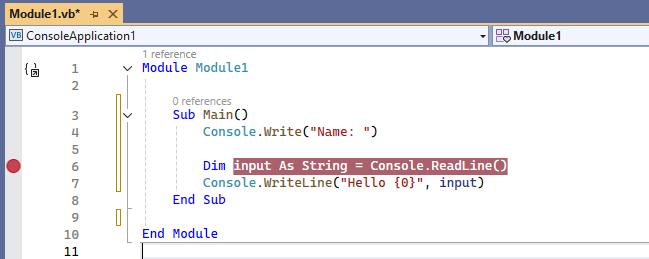
With this example, after it prints the output Name: , the debugger will stop execution just before prompting the user for the input.
Stepping Through Code
Visual Studio Content Only
The content in this lesson will only be applicable to code compiled through Visual Studio.
Unfortunately, the majority of this will not apply to online sandboxes or other IDEs.
Description
When you are in break mode and execution is paused at a breakpoint, the next step is controlling how the program will continue. This is done by stepping through the code one line at a time.
Stepping through the code will allow you to follow a specific execution path, making it much easier to understand how values change and how logic flows.
Step Commands
Visual Studio provides several commands for stepping through code, each behaving slightly differently. They are:
- Step Into (F11) - Executes the current line and enters any method that is called.
- Step Over (F10) - Executes the current line without entering called methods.
- Step Out (Shift + F11) - Continues execution until the current method returns.
Example
In the below example, I'm going to prefix each line with a line number:
1. Module Module1
2.
3.      Sub Main()
4.          Console.Write("Name: ")
5.
6.          Dim input As String = PromptForName()
7.          PrintLetters(input)
8.      End Sub
9.
10.     Private Function PromptForName() As String
11.         Dim input As String = Console.ReadLine()
12.         Return input
13.     End Function
14.
15.     Private Sub PrintLetters(input As String)
16.         For Each character As Char In input
17.             Console.WriteLine(character)
18.         Next
19.     End Sub
20.
21.  End Module
Assume we setup a breakpoint on line 6, this is how the step commands would work:
- The would pause execution on the line where we define and assign "input".
- Stepping into (either the shortcut F11 or Debug > Step Into) would move the break to line 11. This is because a method is being called.
- Either stepping into or stepping over (either the shortcut F10 or Debug > Step Over) would move the break to line 12 after the user hits enter in the command line iterface. This is because a new method is not being called, so we simply move to the next line.
- Stepping out (either the shortcut Shift + F11 or Debug > Step Out) would move the break back to line 6. However, the "input" variable would now be assigned to whatever was returned by the method (in our case the user input).
- Either stepping into or stepping over would move the break to line 7. For the same reasons as #3.
Quiz
Question 1
Question 2
Why Stepping Is Important
Stepping through code removes guesswork. Instead of assuming how a loop behaves or which tree a conditional statement goes through, you can watch it happen in real time.
This is especially useful when debugging logical errors, where the program runs correctly but produces unexpected results.
Debug Windows
Visual Studio Content Only
The content in this lesson will only be applicable to code compiled through Visual Studio.
Unfortunately, the majority of this will not apply to online sandboxes or other IDEs.
Description
There are special windows in Visual Studio that help you inspect what your program is doing while it is paused at a breakpoint, these are your debug windows.
Debug windows are only available while your program is paused in break mode. If you setup a breakpoint and enter break mode, you can access them through the Debug > Windows menu.
Locals Window
The Locals window shows all variables that are currently in scope. This is the quickest way to see the current values of variables while stepping through code.
As you step through the code, Visual Studio will update the values in the window in real time. For example, assume you have this code:
1. Module Module1
2.
3.     Sub Main()
4.         Dim value As Integer = 2
5.         For index As Integer = 1 To 10
6.             value += value
7.         Next
8.     End Sub
9. End Module
If you set a breakpoint up on line 4 and step into the code, your watch window will have the value go from 2 to 4 to 8 to 16 and so on until you finish the loop.
Watch Window
The Watch window lets you manually track specific variables or expressions. I personally use this feature quite a bit when I need to monitor a specific value instead of everything inside the current scope.
You can add items by typing a variable name or expression directly into the Watch window.
Call Stack Window
The Call Stack window shows how your program got at the current line of code. Each line in the call stack represents a method that was called.
This is especially helpful when debugging methods that call other methods. For example, image you are in this scenario:
Private Sub Entry1()
    ' do something...
    FinalDestination()
End Sub

Private Sub Entry2()
    ' do something different...
    FinalDestination()
End Sub

Private Sub Entry3()
    ' do something completely different...
    FinalDestination()
End Sub

Private Sub FinalDestination()
    ' can be invoked by Entry1, Entry2, or Entry3
End Sub
If you setup a breakpoint inside the FinalDestination method, the Stack Window would show you if it was Entry1, Entry2, or Entry3 that called the method.
Immediate Window
The Immediate window allows you to execute code while debugging. You can literally execute arbitrary code while your application is in break mode. This window is useful for testing or making small changes.
For example, lets assume you wanted to test what would happen if a particular variable equaled a different value than what it currently is. You could open the Immediate window and set the value to something completely different, then when the code resumed the value would be what you manually set it to.
Output & Stack Traces
Visual Studio Content Only
The content in this lesson will only be applicable to code compiled through Visual Studio.
Unfortunately, the majority of this will not apply to online sandboxes or other IDEs.
Description
There are some debugging techniques that you can implement which don't require you to setup breakpoints and go into break mode.
These are particularly useful when going into loops or simply allowing the application to take its natural flow.
Debug Output
The Output window displays messages while your program runs. This can include information about when the application builds, runtime diagnostics, and debug output.
Not only can you see messages provided by Visual Studio and 3rd party libraries, but you can even write your own messages to the Output window using the Debug.WriteLine method (opens in new window):
Imports System
Imports System.Diagnostics

Public Module Module1
    Public Sub Main()
        For index As Integer = 1 To 100
            Console.WriteLine(index)
            If (index Mod 2 = 0) Then
                Debug.WriteLine("Even number")
            End If
        Next
    End Sub
End Module
These messages are only shown in debug mode and do not affect program execution.
Also keep in mind that the Debug class lives in the System.Diagnostics namespace which means that you would need to either import the namespace or fully qualify the call:
Imports System.Diagnostics
Debug.WriteLine("...")

' or
System.Diagnostics.Debug.WriteLine("...")
Stack Traces
We briefly discussed stack traces in the previous lesson, but I wanted to go over them a bit more in detail here. If an exception is thrown, Visual Studio will typically display the stack trace automatically and the stack trace will contain the history of method calls that ultimately led to the line the caused the error.
Reading a stack trace helps you identify:
- Where the error occurred
- Which methods were involved
- How the program reached that point
Usually, when debugging an exception, start at the top of the stack trace and work your way down.
Part of growing as a developer is to learn how to effectively read stack traces and working your way to the root cause of the issue.
Congratulations!

You Did It Harry!
First off, I would like to say congratulations on completing every lesson. By this point you should have developed solid fundamentals that will make you a successfull programmer.
Now comes the big question: what should you do next? I would highly recommend building a project. Here are some project ideas:
- CRUD - Create a class to store a person and then allow users to create, read, update, and delete people.
- Pokédex - Create a class to represent a Pokémon and allow users to search for pokémon by their name or id.
- Tic-Tac-Toe - Using ASCII art to "draw" on the console, build a player versus computer tic-tac-toe game.
- Calculator - Calculators can be as simple or robust as possible, try building a calculator that supports pi as well as clear entry and clear global functions.
Remember, programming is a "use it or lose it" skill. If you do not keep programming, as time goes by you will start to lose your edge. Whatever you decide to do going forward, I encourage you to continue programming and nevery shy away from asking for help.
In closing, if you are looking for a community to join full of nerds like myself, come on over to https://www.vbforums.com. I go by the handle dday9 and I hope to see you soon!
Capstone
It is traditional in classes where they teach software development to finish with a capstone project. This is basically a culmination of your skills where you take what you have learned from the class and apply it towards a real-world project.
Think of this the "crowning achievement" of finishing the course.
Go to the next lesson if you would like to complete a capstone project. Not only will it lay out the directions, but it will show you how I would have done it too given the information you have learned and nothing more.
Capstone
Background
- We need to manage a parking garage.
- When the application loads, it should read a file of existing data.
- When the application loads, it should show a menu that allows users to indicate if they are:
- Add a vehicle.
- View garage.
- Revenue earned.
- Adding a vehicle should prompt you for the following values:
- Vehicle Type - Only acceptable inputs are:
- Motorcycle
- Car
- Truck
- Year
- Make
- Model
- License Plate Number
- Minutes Purchased
- Vehicle Type - Only acceptable inputs are:
- Viewing the garage should display every vehicle with the following features:
- Columns: These are the columns that should be displayed:
- Row Number
- Timelimit Reached (yes/no)
- Vehicle Type
- License Plate Number
- Pagination: Only display 5 vehicles at a time, but allow the user to go forward/backward between pages.
- Sorting: Allow the user to sort the results.
- Searching: Allow the user to search the results by any field.
- Selecting: Allow the user to select a vehicle to view more information by its row number.
- Deleting: Allow the user to select a vehicle to delete by its row number.
- This should not immediately delete the vehicle.
- Instead, the user should be prompted to confirm the deletion first.
- If they confirm, then proceed with the delete, otherwise do nothing.
- Columns: These are the columns that should be displayed:
- Viewing an individual vehicle should list details about the vehicle along with the following features:
- Timelimit Reached: Display a note indicating if the vehicle has exceeded the number of minutes purchased.
- Revenue Earned: Display how much revenue has been earned by the vehicle.
- This will use a base rate of 25¢ per minute.
- Any minute that exceed the number of minutes purchased will use a rate of 1.5x the base rate.
- Any fractions exceeding two decimal places will be rounded to the nearest cent.
- For example, if a vehicle purchased 10 minutes and they've been in the garage for 15 minutes, then they'd owe $4.38
- Viewing the revenue earned menu will display the total revenue earned for each day the garage has been in use with the following features:
- Columns: These are the columns that should be displayed:
- Date
- Total
- Pagination: Only display 5 dates at a time, but allow the user to go forward/backward between pages.
- Sorting: Allow the user to sort the results.
- Columns: These are the columns that should be displayed:
- Closing the application will save the data to a file so that it can be reopened later.
- The file format and how you wish to store the data is entirely up to you.
Capstone Solution
Recommended File Structure
Show
- + Classes
- - Garage.vb
- - ParkingSpot.vb
- - Vehicle.vb
- - Module1.vb
Files
Show 1st File
Classes/Vehicle.vb
Public Class Vehicle

    Public Property VehicleType As String
    Public Property Year As Integer
    Public Property Make As String
    Public Property Model As String
    Public Property LicensePlateNumber As String

End Class
Show 2nd File
Classes/ParkingSpot.vb
Imports System
Public Class ParkingSpot

    Public Property Vehicle As Vehicle
    Public Property MinutesPurchased As Integer
    Public Property StoredAt As DateTime

    Public Function ExceededMinutesPurchased(currentTime As DateTime) As Boolean
        Dim purchasedUpTo As DateTime = StoredAt.AddMinutes(MinutesPurchased)
        Dim outOfMinutes As Boolean = currentTime > purchasedUpTo

        Return outOfMinutes
    End Function

    Public Function CalculateRevenue(currentTime As DateTime) As Decimal
        Dim baseRate As Double = 0.25
        Dim extendedRate As Double = baseRate * 1.5

        Dim baseAmount As Decimal = Convert.ToDecimal(baseRate * MinutesPurchased)
        Dim totalAmount As Decimal = baseAmount
        If (ExceededMinutesPurchased(currentTime)) Then
            Dim purchasedUpTo As DateTime = StoredAt.AddMinutes(MinutesPurchased)
            Dim timeDifference As TimeSpan = currentTime.Subtract(purchasedUpTo)
            Dim differenceInMinutes As Integer = Convert.ToInt32(timeDifference.TotalMinutes)
            Dim extendedAmount As Decimal = Convert.ToDecimal(extendedAmount * differenceInMinutes)
            totalAmount = totalAmount + extendedAmount
        End If

        Return totalAmount
    End Function

End Class
Show 3rd File
Classes/Garage.vb
Imports System
Imports System.Collections.Generic
Imports System.IO

Public Class Garage

    Public Property SpotsTaken As List(Of ParkingSpot)
    Public Property HistoricalRevenue As Dictionary(Of DateTime, Decimal)

    Public Sub New()
        SpotsTaken = New List(Of ParkingSpot)()
        HistoricalRevenue = New Dictionary(Of Date, Decimal)()
    End Sub

    ' load data
    Public Sub LoadDataFile(dataFile As String)
        Dim today As DateTime = DateTime.Now.Date
        Dim lines As String() = File.ReadAllLines(dataFile)
        If (lines.Length = 0) Then
            HistoricalRevenue.Add(today, 0)
            Return
        End If

        Dim lineIndex As Integer = 0
        Dim currentLine As String = lines(lineIndex)
        Do Until lineIndex >= lines.Length OrElse (currentLine >< "HistoricalRevenue" AndAlso currentLine >< "SpotsTaken")
            If (currentLine = "HistoricalRevenue") Then
                lineIndex = lineIndex + 1
                ParseHistoricalRevenue(lines, lineIndex)
                lineIndex = lineIndex + 1
            End If
            If (lineIndex <= lines.Length - 1) Then
                currentLine = lines(lineIndex)
            End If
            If (currentLine = "SpotsTaken") Then
                lineIndex = lineIndex + 1
                ParseSpotsTaken(lines, lineIndex)
                lineIndex = lineIndex + 1
            End If
            If (lineIndex <= lines.Length - 1) Then
                currentLine = lines(lineIndex)
            End If
        Loop

        If (Not HistoricalRevenue.ContainsKey(Today)) Then
            HistoricalRevenue.Add(Today, 0)
        End If
    End Sub

    Private Sub ParseHistoricalRevenue(lines As String(), ByRef lineIndex As Integer)
        Dim currentLine As String = lines(lineIndex)
        Do Until lineIndex >= lines.Length OrElse currentLine = "HistoricalRevenue"
            Dim currentLineParts As String() = currentLine.Split("|"c)
            If (currentLineParts.Length = 2) Then
                Dim datePart As String = currentLineParts(0)
                Dim datePartConverted As DateTime

                Dim revenuePart As String = currentLineParts(1)
                Dim revenuePartConverted As Decimal

                If (DateTime.TryParse(datePart, datePartConverted) AndAlso Decimal.TryParse(revenuePart, revenuePartConverted)) Then
                    datePartConverted = datePartConverted.Date
                    If (HistoricalRevenue.ContainsKey(datePartConverted)) Then
                        Dim existingAmount As Decimal = HistoricalRevenue.Item(datePartConverted)
                        HistoricalRevenue.Item(datePartConverted) = existingAmount + revenuePartConverted
                    Else
                        HistoricalRevenue.Add(datePartConverted, revenuePartConverted)
                    End If
                End If
            End If

            lineIndex = lineIndex + 1
            If (lineIndex <= lines.Length - 1) Then
                currentLine = lines(lineIndex)
            End If
        Loop
    End Sub

    Private Sub ParseSpotsTaken(lines As String(), ByRef lineIndex As Integer)
        Dim currentLine As String = lines(lineIndex)
        Do Until lineIndex >= lines.Length OrElse currentLine = "SpotsTaken"
            Dim currentLineParts As String() = currentLine.Split("|"c)
            If (currentLineParts.Length = 7) Then
                Dim vehicleTypePart As String = currentLineParts(0)

                Dim yearPart As String = currentLineParts(1)
                Dim yearPartConverted As Integer

                Dim makePart As String = currentLineParts(2)
                Dim modelPart As String = currentLineParts(3)
                Dim licensePlateNumberPart As String = currentLineParts(4)

                Dim minutesPurchasedPart As String = currentLineParts(5)
                Dim minutesPurchasedPartConverted As Integer

                Dim dateStoredPart As String = currentLineParts(6)
                Dim dateStoredPartConverted As DateTime

                If (Integer.TryParse(yearPart, yearPartConverted) AndAlso Integer.TryParse(minutesPurchasedPart, minutesPurchasedPartConverted) AndAlso DateTime.TryParse(dateStoredPart, dateStoredPartConverted)) Then
                    Dim parsedVehicle As New Vehicle()
                    parsedVehicle.VehicleType = vehicleTypePart
                    parsedVehicle.Year = yearPartConverted
                    parsedVehicle.Make = makePart
                    parsedVehicle.Model = modelPart
                    parsedVehicle.LicensePlateNumber = licensePlateNumberPart

                    Dim parsedSpot As New ParkingSpot()
                    parsedSpot.Vehicle = parsedVehicle
                    parsedSpot.MinutesPurchased = minutesPurchasedPartConverted
                    parsedSpot.StoredAt = dateStoredPartConverted

                    SpotsTaken.Add(parsedSpot)
                End If
            End If

            lineIndex = lineIndex + 1
            If (lineIndex <= lines.Length - 1) Then
                currentLine = lines(lineIndex)
            End If
        Loop
    End Sub

    ' save data
    Public Sub SaveDataFile(dataFile As String)
        Dim historicalRevenueLines As String() = StringifyHistoricalRevenue()
        Dim spotsTakenLines As String() = StringifySpotsTaken()

        Dim linesToWrite As New List(Of String)()
        linesToWrite.AddRange(historicalRevenueLines)
        linesToWrite.AddRange(spotsTakenLines)

        If (linesToWrite.Count > 0) Then
            File.WriteAllLines(dataFile, linesToWrite)
        End If
    End Sub

    Private Function StringifyHistoricalRevenue() As String()
        Dim linesToWrite As New List(Of String)

        If (HistoricalRevenue.Count > 0) Then
            linesToWrite.Add("HistoricalRevenue")
            For Each pair As KeyValuePair(Of DateTime, Decimal) In HistoricalRevenue
                Dim arrayToJoin() As String = {pair.Key.ToString(), pair.Value.ToString()}
                Dim lineToWrite As String = String.Join("|", arrayToJoin)
                linesToWrite.Add(lineToWrite)
            Next
            linesToWrite.Add("HistoricalRevenue")

        End If

        Return linesToWrite.ToArray()
    End Function

    Private Function StringifySpotsTaken() As String()
        Dim linesToWrite As New List(Of String)

        If (SpotsTaken.Count > 0) Then
            linesToWrite.Add("SpotsTaken")
            For Each spot As ParkingSpot In SpotsTaken
                Dim arrayToJoin() As String = {
                    spot.Vehicle.VehicleType,
                    spot.Vehicle.Year.ToString(),
                    spot.Vehicle.Make,
                    spot.Vehicle.Model,
                    spot.Vehicle.LicensePlateNumber,
                    spot.MinutesPurchased.ToString(),
                    spot.StoredAt.ToString()
                }
                Dim lineToWrite As String = String.Join("|", arrayToJoin)
                linesToWrite.Add(lineToWrite)
            Next
            linesToWrite.Add("SpotsTaken")

        End If

        Return linesToWrite.ToArray()
    End Function

    ' calculations
    Public Function CalculateCurrentRevenue(currentTime As DateTime) As Decimal
        Dim runningTotal As Decimal = 0

        For Each spotTaken As ParkingSpot In SpotsTaken
            Dim totalForVehicle As Decimal = spotTaken.CalculateRevenue(currentTime)
            runningTotal = runningTotal + totalForVehicle
        Next

        Return runningTotal
    End Function

End Class
Show 4th File
Module1.vb
Imports System
Imports System.Collections.Generic
Imports System.IO
Imports System.Linq
Imports Microsoft.VisualBasic
Module Module1
Private _garage As New Garage()
Private _filePath As String = IO.Path.Combine(Environment.GetFolderPath(Environment.SpecialFolder.LocalApplicationData), "data.txt")
Sub Main()
If (Not TryCreateDataFile()) Then
Console.WriteLine("The application cannot continue.")
Console.ReadLine()
Return
End If
Try
_garage.LoadDataFile(_filePath)
Catch ex As Exception
Console.WriteLine("Unable to load the save data file. Continuing without historical data.")
End Try
MainMenu()
End Sub
Private Function TryCreateDataFile() As Boolean
Try
If (Not File.Exists(_filePath)) Then
File.WriteAllText(_filePath, String.Empty)
End If
Catch ex As UnauthorizedAccessException
Console.WriteLine("You do not have access to save data.")
Return False
Catch ex As Exception
Console.WriteLine("Something unexpected occured creating/getting the data file.")
Console.Write("Do you want to try again (Y/n): ")
Dim response As String = Console.ReadLine()
If (response = "Y" OrElse response = "y") Then
Return TryCreateDataFile()
Else
Return False
End If
End Try
Return True
End Function
Private Sub MainMenu()
Console.Clear()
Console.WriteLine("1. Add Vehicle")
Console.WriteLine("2. View Garage")
Console.WriteLine("3. Revenue Earned")
Console.WriteLine("4. Save and Exit")
Console.Write("> ")
Dim response As String = Console.ReadLine()
If (response = "1") Then
AddVehicle()
ElseIf (response = "2") Then
ViewGarage()
ElseIf (response = "3") Then
ViewHistoricalRevenue()
ElseIf (response = "4") Then
SaveAndClose()
Else
Console.WriteLine("Invalid input, please enter: 1, 2, 3, or 4.")
Console.ReadLine()
MainMenu()
End If
End Sub
' add vehicle
Private Sub AddVehicle()
Console.Clear()
Console.WriteLine("Add Vehicle")
Dim parsedVehicle As New Vehicle()
parsedVehicle.VehicleType = PromptForVehicleType()
parsedVehicle.Year = PromptForVehicleYear()
parsedVehicle.Make = PromptForVehicleMake()
parsedVehicle.Model = PromptForVehicleModel()
parsedVehicle.LicensePlateNumber = PromptForVehicleLicensePlateNumber()
Dim parsedParkingSpot As New ParkingSpot()
parsedParkingSpot.Vehicle = parsedVehicle
parsedParkingSpot.MinutesPurchased = PromptForMinutesPurchased()
parsedParkingSpot.StoredAt = DateTime.Now
Dim confirmation As Boolean = ConfirmVehicleAdd(parsedParkingSpot)
If (confirmation) Then
_garage.SpotsTaken.Add(parsedParkingSpot)
Console.WriteLine("Vehicle successfully added.")
Else
Console.WriteLine("Cancelling and going back.")
End If
Console.ReadLine()
MainMenu()
End Sub
Private Function PromptForVehicleType() As String
Console.Write("Vehicle Type (Motorcycle, Car, Truck): ")
Dim response As String = Console.ReadLine().ToUpper()
If (response <> "MOTORCYCLE" AndAlso response <> "CAR" AndAlso response <> "TRUCK") Then
Console.WriteLine("Invalid input.")
Console.WriteLine()
Return PromptForVehicleType()
End If
Return response
End Function
Private Function PromptForVehicleYear() As Integer
Console.Write("Year: ")
Dim response As String = Console.ReadLine().ToUpper()
Dim responseParsed As Integer
If (Not Integer.TryParse(response, responseParsed)) Then
Console.WriteLine("Invalid input.")
Console.WriteLine()
Return PromptForVehicleYear()
End If
Return responseParsed
End Function
Private Function PromptForVehicleMake() As String
Console.Write("Make: ")
Dim response As String = Console.ReadLine().ToUpper()
If (String.IsNullOrWhiteSpace(response)) Then
Console.WriteLine("Invalid input.")
Console.WriteLine()
Return PromptForVehicleMake()
End If
Return response
End Function
Private Function PromptForVehicleModel() As String
Console.Write("Model: ")
Dim response As String = Console.ReadLine().ToUpper()
If (String.IsNullOrWhiteSpace(response)) Then
Console.WriteLine("Invalid input.")
Console.WriteLine()
Return PromptForVehicleModel()
End If
Return response
End Function
Private Function PromptForVehicleLicensePlateNumber() As String
Console.Write("License Plate Number: ")
Dim response As String = Console.ReadLine().ToUpper()
If (String.IsNullOrWhiteSpace(response)) Then
Console.WriteLine("Invalid input.")
Console.WriteLine()
Return PromptForVehicleLicensePlateNumber()
End If
Return response
End Function
Private Function PromptForMinutesPurchased() As Integer
Console.Write("Minutes: ")
Dim response As String = Console.ReadLine().ToUpper()
Dim responseParsed As Integer
If (Not Integer.TryParse(response, responseParsed)) Then
Console.WriteLine("Invalid input.")
Console.WriteLine()
Return PromptForMinutesPurchased()
End If
Dim minimumMinutes As Integer = 1
Dim maximumMinutes As Integer = (23 * 60) + 59
If (responseParsed < minimumMinutes OrElse responseParsed > maximumMinutes) Then
Console.WriteLine("Invalid input. The number must be between {0} and {1}", minimumMinutes, maximumMinutes)
Console.WriteLine()
Return PromptForMinutesPurchased()
End If
Return responseParsed
End Function
Private Function ConfirmVehicleAdd(spot As ParkingSpot) As Boolean
Console.WriteLine("Vehicle Information:")
Console.WriteLine(" {0} - {1}", spot.Vehicle.VehicleType, spot.Vehicle.LicensePlateNumber)
Console.WriteLine(" {0} {1} {2}", spot.Vehicle.Year, spot.Vehicle.Make, spot.Vehicle.Model)
Console.WriteLine(" {0} minutes purchased", spot.MinutesPurchased)
Console.WriteLine()
Console.WriteLine("Are you sure (Y/n):")
Dim response As String = Console.ReadLine()
Dim result As Boolean = (response = "Y" OrElse response = "y")
Return result
End Function
' view garage
Private Sub ViewGarage()
Console.Clear()
If (_garage.SpotsTaken.Count = 0) Then
Console.WriteLine("No spots taken.")
Console.ReadLine()
MainMenu()
Return
End If
PrintViewGarage(0, 5, 1, True)
End Sub
Private Sub PrintViewGarage(pageIndex As Integer, pageSize As Integer, sortColumnIndex As Integer, sortAscending As Boolean)
Console.Clear()
If (pageIndex < 0) Then
pageIndex = 0
End If
If (pageSize > _garage.SpotsTaken.Count) Then
pageSize = _garage.SpotsTaken.Count
End If
Dim sortedSpots As ParkingSpot() = SortSpotsTaken(sortColumnIndex, sortAscending)
Dim pagedSpots As ParkingSpot() = PageSortedSpotsTaken(sortedSpots, pageIndex, pageSize)
Console.WriteLine("Page {0}", pageIndex + 1)
Dim rowNumberHeader As String = GetColumnHeader("#", 0, sortColumnIndex, sortAscending)
Dim isOverHeader As String = GetColumnHeader("Is Over?", 1, sortColumnIndex, sortAscending)
Dim vehicleTypeHeader As String = GetColumnHeader("Vehicle Type", 2, sortColumnIndex, sortAscending)
Dim licensePlateNumberHeader As String = GetColumnHeader("License Plate Number", 3, sortColumnIndex, sortAscending)
Console.WriteLine("{0} | {1} | {2} | {3}", rowNumberHeader, isOverHeader, vehicleTypeHeader, licensePlateNumberHeader)
Console.WriteLine("-------------------")
Dim counter As Integer = 1
Dim rightNow As DateTime = DateTime.Now
For Each spot As ParkingSpot In pagedSpots
Dim isOver As String = "No"
If (spot.ExceededMinutesPurchased(rightNow)) Then
isOver = "Yes"
End If
Console.WriteLine("{0} | {1} | {2} | {3}", counter, isOver, spot.Vehicle.VehicleType, spot.Vehicle.LicensePlateNumber)
counter = counter + 1
Next
Console.WriteLine("-------------------")
PromptForPrintSpotsTakenCommand(pageIndex, pageSize, sortColumnIndex, sortAscending)
End Sub
Private Function SortSpotsTaken(sortColumnIndex As Integer, sortAscending As Boolean) As ParkingSpot()
Dim rightNow As DateTime = DateTime.Now
If (sortAscending) Then
Return _garage.SpotsTaken.OrderBy(Function(spot As ParkingSpot) As Integer
If (sortColumnIndex = 1) Then
If (spot.ExceededMinutesPurchased(rightNow)) Then
Return 0
Else
Return 1
End If
ElseIf (sortColumnIndex = 2) Then
If (spot.Vehicle.VehicleType = "CAR") Then
Return 0
ElseIf (spot.Vehicle.VehicleType = "TRUCK") Then
Return 1
Else
Return 2
End If
Else
Dim ascii As Integer = Asc(spot.Vehicle.LicensePlateNumber)
Return ascii
End If
End Function).ToArray()
Else
Return _garage.SpotsTaken.OrderByDescending(Function(spot As ParkingSpot) As Integer
If (sortColumnIndex = 1) Then
If (spot.ExceededMinutesPurchased(rightNow)) Then
Return 0
Else
Return 1
End If
ElseIf (sortColumnIndex = 2) Then
If (spot.Vehicle.VehicleType = "CAR") Then
Return 0
ElseIf (spot.Vehicle.VehicleType = "TRUCK") Then
Return 1
Else
Return 2
End If
Else
Dim ascii As Integer = Asc(spot.Vehicle.LicensePlateNumber)
Return ascii
End If
End Function).ToArray()
End If
End Function
Private Function PageSortedSpotsTaken(sortedSpots As ParkingSpot(), ByRef pageIndex As Integer, pageSize As Integer) As ParkingSpot()
Dim skipSize As Integer = pageIndex * pageSize
If (skipSize >= sortedSpots.Length) Then
pageIndex = pageIndex - 1
Return PageSortedSpotsTaken(sortedSpots, pageIndex, pageSize)
End If
Dim skippedRecords As ParkingSpot() = sortedSpots.Skip(skipSize).ToArray()
Dim currentPageOfRecords As ParkingSpot() = skippedRecords.Take(pageSize).ToArray()
Return currentPageOfRecords
End Function
Private Sub PromptForPrintSpotsTakenCommand(pageIndex As Integer, pageSize As Integer, sortColumnIndex As Integer, sortAscending As Boolean)
Console.WriteLine("N = Next Page | P = Previous Page | Q = Go Back | S = Sort | Row Number = View Spot")
Dim response As String = Console.ReadLine().ToUpper()
Dim rowNumber As Integer
If (response = "N") Then
PrintViewGarage(pageIndex + 1, pageSize, sortColumnIndex, sortAscending)
ElseIf (response = "P") Then
PrintViewGarage(pageIndex - 1, pageSize, sortColumnIndex, sortAscending)
ElseIf (response = "Q") Then
MainMenu()
ElseIf (response = "S") Then
sortColumnIndex = PromptForSortSpotsTakenColumn()
sortAscending = PromptForSortSpotsTakenDirection()
PrintViewGarage(pageIndex, pageSize, sortColumnIndex, sortAscending)
ElseIf (Integer.TryParse(response, rowNumber) AndAlso rowNumber > 0) Then
Dim sortedSpots As ParkingSpot() = SortSpotsTaken(sortColumnIndex, sortAscending)
Dim pagedSpots As ParkingSpot() = PageSortedSpotsTaken(sortedSpots, pageIndex, pageSize)
If (rowNumber <= pageSize) Then
Dim selectedSpot As ParkingSpot = pagedSpots(rowNumber - 1)
ViewSpot(selectedSpot, pageIndex, pageSize, sortColumnIndex, sortAscending)
Else
Console.WriteLine("Invalid input.")
Console.WriteLine()
PromptForPrintSpotsTakenCommand(pageIndex, pageSize, sortColumnIndex, sortAscending)
End If
Else
Console.WriteLine("Invalid input.")
Console.WriteLine()
PromptForPrintSpotsTakenCommand(pageIndex, pageSize, sortColumnIndex, sortAscending)
End If
End Sub
Private Function PromptForSortSpotsTakenColumn() As Integer
Console.WriteLine("1. Is Over? ")
Console.WriteLine("2. Vehicle Type ")
Console.WriteLine("3. License # ")
Console.Write("> ")
Dim response As String = Console.ReadLine()
Dim columnIndex As Integer
If (response = "1") Then
columnIndex = 1
ElseIf (response = "2") Then
columnIndex = 2
ElseIf (response = "3") Then
columnIndex = 3
Else
Console.WriteLine("Invalid Input.")
Console.WriteLine()
Return PromptForSortSpotsTakenColumn()
End If
Return columnIndex
End Function
Private Function PromptForSortSpotsTakenDirection() As Boolean
Console.WriteLine("1. Ascending ")
Console.WriteLine("2. Descending ")
Console.Write("> ")
Dim response As String = Console.ReadLine()
Dim isAscending As Boolean
If (response = "1") Then
isAscending = True
ElseIf (response = "2") Then
isAscending = False
Else
Console.WriteLine("Invalid Input.")
Console.WriteLine()
Return PromptForSortSpotsTakenDirection()
End If
Return isAscending
End Function
' view vehicle
Private Sub ViewSpot(spot As ParkingSpot, pageIndex As Integer, pageSize As Integer, sortColumnIndex As Integer, sortAscending As Boolean)
Console.Clear()
Console.WriteLine("Vehicle Information:")
Console.WriteLine(" {0} - {1}", spot.Vehicle.VehicleType, spot.Vehicle.LicensePlateNumber)
Console.WriteLine(" {0} {1} {2}", spot.Vehicle.Year, spot.Vehicle.Make, spot.Vehicle.Model)
Console.WriteLine(" {0} minutes purchased", spot.MinutesPurchased)
Dim currentTime As DateTime = DateTime.Now
If (spot.ExceededMinutesPurchased(currentTime)) Then
Dim timeExceeded As TimeSpan = currentTime.Subtract(spot.StoredAt)
Dim timeExceededInMinutes As Integer = Convert.ToInt32(timeExceeded.TotalMilliseconds)
Console.WriteLine(" {0} minutes exceed", timeExceededInMinutes)
End If
Console.WriteLine()
Console.WriteLine("D = Delete | Q = Go Back")
Dim response As String = Console.ReadLine().ToUpper()
If (response = "D") Then
PromptDeleteSpot(spot, pageIndex, pageSize, sortColumnIndex, sortAscending)
ElseIf (response = "Q") Then
PrintViewGarage(pageIndex, pageSize, sortColumnIndex, sortAscending)
Else
Console.WriteLine("Invalid input.")
Console.ReadLine()
ViewSpot(spot, pageIndex, pageSize, sortColumnIndex, sortAscending)
End If
End Sub
Private Function PromptDeleteSpot(spot As ParkingSpot, pageIndex As Integer, pageSize As Integer, sortColumnIndex As Integer, sortAscending As Boolean) As Boolean
Console.WriteLine("Are you sure (Y/n)?")
Dim response As String = Console.ReadLine()
If (response = "Y" OrElse response = "y") Then
_garage.SpotsTaken.Remove(spot)
Console.WriteLine("Vehicle deleted.")
Console.WriteLine()
ViewGarage()
Else
ViewSpot(spot, pageIndex, pageSize, sortColumnIndex, sortAscending)
End If
End Function
' historical revenue
Private Sub ViewHistoricalRevenue()
Console.Clear()
If (_garage.HistoricalRevenue.Count = 0) Then
Console.WriteLine("No revenue data available.")
Console.ReadLine()
MainMenu()
Return
End If
UpdateTodaysRevenue()
PrintHistoricalRevenue(0, 5, 0, True)
End Sub
Private Sub PrintHistoricalRevenue(pageIndex As Integer, pageSize As Integer, sortColumnIndex As Integer, sortAscending As Boolean)
Console.Clear()
If (pageIndex < 0) Then
pageIndex = 0
End If
If (pageSize > _garage.HistoricalRevenue.Count) Then
pageSize = _garage.HistoricalRevenue.Count
End If
Dim sortedHistory As KeyValuePair(Of DateTime, Decimal)() = SortHistoricalRevenue(sortColumnIndex, sortAscending)
Dim pagedHistory As KeyValuePair(Of DateTime, Decimal)() = PageSortedHistoricalRevenue(sortedHistory, pageIndex, pageSize)
Console.WriteLine("Page {0}", pageIndex + 1)
Dim dateHeader As String = GetColumnHeader("Date ", 0, sortColumnIndex, sortAscending)
Dim totalHeader As String = GetColumnHeader("Total ", 1, sortColumnIndex, sortAscending)
Console.WriteLine("{0} | {1}", dateHeader, totalHeader)
Console.WriteLine("-------------------")
For Each pair As KeyValuePair(Of DateTime, Decimal) In pagedHistory
Console.WriteLine("{0:yyyy-MM-dd} | ${1:F2}", pair.Key, pair.Value)
Next
Console.WriteLine("-------------------")
PromptForPrintHistoricalRevenueCommand(pageIndex, pageSize, sortColumnIndex, sortAscending)
End Sub
Private Function SortHistoricalRevenue(sortColumnIndex As Integer, sortAscending As Boolean) As KeyValuePair(Of DateTime, Decimal)()
If (sortAscending) Then
Return _garage.HistoricalRevenue.OrderBy(Function(history As KeyValuePair(Of DateTime, Decimal)) As Decimal
If (sortColumnIndex = 0) Then
Return history.Key.Ticks
Else
Return history.Value
End If
End Function).ToArray()
Else
Return _garage.HistoricalRevenue.OrderByDescending(Function(history As KeyValuePair(Of DateTime, Decimal)) As Decimal
If (sortColumnIndex = 0) Then
Return history.Key.Ticks
Else
Return history.Value
End If
End Function).ToArray()
End If
End Function
Private Function PageSortedHistoricalRevenue(sortedHistory As KeyValuePair(Of DateTime, Decimal)(), ByRef pageIndex As Integer, pageSize As Integer) As KeyValuePair(Of DateTime, Decimal)()
Dim skipSize As Integer = pageIndex * pageSize
If (skipSize >= sortedHistory.Length) Then
pageIndex = pageIndex - 1
Return PageSortedHistoricalRevenue(sortedHistory, pageIndex, pageSize)
End If
Dim skippedRecords As KeyValuePair(Of DateTime, Decimal)() = sortedHistory.Skip(skipSize).ToArray()
Dim currentPageOfRecords As KeyValuePair(Of DateTime, Decimal)() = skippedRecords.Take(pageSize).ToArray()
Return currentPageOfRecords
End Function
Private Sub PromptForPrintHistoricalRevenueCommand(pageIndex As Integer, pageSize As Integer, sortColumnIndex As Integer, sortAscending As Boolean)
Console.WriteLine("N = Next Page | P = Previous Page | Q = Go Back | S = Sort")
Dim response As String = Console.ReadLine().ToUpper()
If (response = "N") Then
PrintHistoricalRevenue(pageIndex + 1, pageSize, sortColumnIndex, sortAscending)
ElseIf (response = "P") Then
PrintHistoricalRevenue(pageIndex - 1, pageSize, sortColumnIndex, sortAscending)
ElseIf (response = "Q") Then
MainMenu()
ElseIf (response = "S") Then
sortColumnIndex = PromptForSortHistoricalRevenueColumn()
sortAscending = PromptForSortHistoricalRevenueDirection()
PrintHistoricalRevenue(pageIndex, pageSize, sortColumnIndex, sortAscending)
Else
Console.WriteLine("Invalid input.")
Console.WriteLine()
PromptForPrintHistoricalRevenueCommand(pageIndex, pageSize, sortColumnIndex, sortAscending)
End If
End Sub
Private Function PromptForSortHistoricalRevenueColumn() As Integer
Console.WriteLine("1. Date ")
Console.WriteLine("2. Total ")
Console.Write("> ")
Dim response As String = Console.ReadLine()
Dim columnIndex As Integer
If (response = "1") Then
columnIndex = 0
ElseIf (response = "2") Then
columnIndex = 1
Else
Console.WriteLine("Invalid Input.")
Console.WriteLine()
Return PromptForSortHistoricalRevenueColumn()
End If
Return columnIndex
End Function
Private Function PromptForSortHistoricalRevenueDirection() As Boolean
Console.WriteLine("1. Ascending ")
Console.WriteLine("2. Descending ")
Console.Write("> ")
Dim response As String = Console.ReadLine()
Dim isAscending As Boolean
If (response = "1") Then
isAscending = True
ElseIf (response = "2") Then
isAscending = False
Else
Console.WriteLine("Invalid Input.")
Console.WriteLine()
Return PromptForSortHistoricalRevenueDirection()
End If
Return isAscending
End Function
' save and close
Private Sub SaveAndClose()
Try
_garage.SaveDataFile(_filePath)
Console.WriteLine("File saved, it is safe to close the application.")
Console.ReadLine()
Catch ex As Exception
Console.WriteLine("Unable to save the file, not closing the application.")
Console.WriteLine("Error: {0}", ex.Message)
Console.ReadLine()
MainMenu()
End Try
End Sub
' shared
Private Function GetColumnHeader(title As String, index As Integer, sortColumnIndex As Integer, sortAscending As Boolean) As String
Dim headerText As String = title
If (index = sortColumnIndex) Then
If (sortAscending) Then
headerText = headerText & " ^"
Else
headerText = headerText & " v"
End If
Else
headerText = headerText & " "
End If
Return headerText
End Function
Private Sub UpdateTodaysRevenue()
Dim today As DateTime = DateTime.Now.Date
If (_garage.HistoricalRevenue.ContainsKey(today)) Then
Dim currentTotal As Decimal = _garage.CalculateCurrentRevenue(today)
_garage.HistoricalRevenue.Item(today) = currentTotal
Else
_garage.HistoricalRevenue.Add(today, 0)
End If
End Sub
End ModuleNotes
Please know that there are several ways to optimize my solution of the capstone project and this is meant to be more of a guide on how I might have handled it given the requirements rather than the definitive answer on how it should be done.
You might have used a different approach or you may have implemented a more elegant solution, and that's OK. The purpose of providing this was to show you how to build a practical VB.NET application given the content that was covered and the requirements.
At the end of the day, doing this project should have shown you how a VB.NET application works by:
- Sticking with .NET principles.
- Touching every major concept in the lessons.
- Implementing a practical, everyday business use.
- Forcing you to think about the requirements, rather than just type out code.